Tasks
On this page
Tasks are shared to-do lists for your team. Each location has its own list, and there is one more list for company-wide work that does not belong to a single location. Everyone sees what needs to be done, who is doing it, and what is finished. Think of it as the note on the fridge, but one the whole team always has with them.
What this is for
- Create a task in seconds: a name, who should do it (a location, some of its positions, or one person), and whether a photo is required.
- Add a description, due date, and files only when you need them.
- Speak a task into the phone app and let Spensa fill in the form for you.
- Complete tasks with an optional comment and an optional photo.
- Get a notice when a task you created is completed, and turn that off in your account settings if you prefer.
- Mark tasks as completed, could not complete (with a reason), or cancelled, and reopen them if needed.
- See today's work, your own tasks, recent completions, or everything in one overview that lists tasks and checklists together, with search and filters.
- Run recurring work with Checklists: build a checklist once, assign it to one or more locations on a schedule, and let the team fill it in on their phones.
- Follow everything that happened to a task in its activity timeline.
Where to open it
On the web, click Tasks in the left sidebar. Overview opens the list of tasks and checklists, and Calendar and Checklists sit next to it. When you are working inside a location, that location's home page is its task board. The app may say "establishment" in some places - that is the same thing as a location.
The company home page also shows a small Tasks box with the first five open company-wide tasks. You can check tasks off right there, click View all to open the All tab of the overview, or click New Task to add one.
On the phone app, open More > Tasks, or its bottom tab if you have added it there. More on the phone app below.
Overview in the sidebar shows a small number: how many open tasks and checklists are assigned to you or to one of your positions. The Tasks entry on the phone app counts the same way.
Access and permissions
Owners and admins can always see and manage all tasks. Managers can too. Regular company members can as well. Company members with a viewer role can only look.
At a location, both managers and staff members can create, edit, and complete that location's tasks. Location viewers can only look.
The company-wide list is a little stricter. Creating and editing tasks there needs company-level permission to manage tasks. Staff members can still see its shared tasks, and staff members who manage tasks at any location can check company-wide tasks off.
You can fine-tune all of this with custom roles. See Team and permissions.
Creating a task
Creating a task only asks for the essentials. Everything else is tucked away under More options.
On the web:
- Click New task on the task board. You can also press Cmd+N (Mac) or Ctrl+N (Windows) while you are not typing in a field.
- Under Task, type what needs to be done, up to 200 characters.
- Under Assign to, choose Location or Person:
- Location - pick the location. If your company has more than one location, you can also choose No location to put the task on the company-wide list. Then pick positions if only some people should do it, for example Kellner and Barkeeper, or leave it at Everyone at the location.
- Person - choose one person. The task goes on the list of that person's location. The form shows which list, for example "Added to the list of Main Street".
- Turn on Photo required if the task needs photo proof.
- Click More options to add a description, a due date and time, or files. These are all optional.
- Click Create task. The task appears on the chosen list with the right assignee.
On the phone:
- Open Tasks and tap New task.
- Type the task under Task, or use Speak task (see below).
- Under Assign to, tap Location or Person and pick the location and positions, or the person.
- Turn on Require photo if needed.
- Tap More options for a description, Due date and time, or attachments.
- Tap Create task. If you leave with unsaved changes, the app asks "Discard this task?".
Every new task gets its own number, like #42, so the team can refer to it easily.
Assigning to positions or a person
Positions are the roles you set up for your teams, such as Kellner or Koch. When a task goes to positions, everyone who holds one of those positions at that location gets the assignment notice, and the task counts as theirs: it shows up when they filter for their own tasks and in their open-task number. Anyone in those positions can work on it. When a task goes to Everyone at the location, anyone working there can do it.
When a task goes to a person, only that person is responsible. You can pick any company member or any staff member of your locations. If the person works at exactly one location, the task goes on that location's list. Assigning a task to yourself sends no notice.
If you change the location while creating a task, the chosen positions are cleared, because each location has its own positions.
Speaking a task on the phone
Instead of typing, tap Speak task at the top of the create screen and say what needs doing, who should do it, and whether a photo is needed. For example: "The bar team should clean the beer taps by Friday evening, with a photo."
- Tap Speak task. Allow microphone access if the phone asks.
- Speak, then tap again to stop. Recordings stop on their own after two minutes.
- Spensa fills in the title, assignee, due date, photo requirement, and description it understood.
- Check the form, change anything that is not right, and tap Create task.
Nothing is saved until you tap Create task. Speaking a task uses your plan's AI allowance. If the allowance is used up, the app says "Your plan's AI usage limit is reached." and you can still type the task.
Photo required
Turn on Photo required (on the phone: Require photo) when the person completing the task must attach a photo as proof, for example a photo of the cleaned grease trap. The setting reads "Staff must attach a photo before marking this done." How completion works then is described under "Marking a task done" below.
Description, due date, and files
These live under More options:
- Description - notes about the task, up to 5,000 characters. Good for details like "the spare key is behind the bar".
- Due - the day the task should be done by, and a time if you want one. If you set a time without a date, Spensa fills in today for you. Tasks without a date show No deadline. On the board, the due date turns red once a task is overdue.
- Files - up to 10 images (JPEG, PNG, WebP) and PDFs, each up to 20 MB. On the phone, choose Photo library or Add file. You can also add and remove files later on the task page.
Older tasks may still show an Available from time or a visibility limit that was set before these options were removed from the form. They keep working as before.
The task overview
Tasks > Overview shows tasks and checklists together. A blue to-do icon marks a task and a purple clipboard icon marks a checklist. Pick a tab at the top:
- Due today - overdue tasks first, marked Overdue, then tasks due today, today's checklists, and open tasks without a due date. Work that gets done today stays in the list with a green note such as "Completed at 15:30 by Anna", so you can see what is finished and what is left. Open a task to complete it.
- For me - open tasks assigned to you or to one of your positions, plus open checklists you fill in. The number next to the tab and next to Overview in the sidebar counts exactly these entries.
- Recently completed - completed tasks and checklists, newest first.
- All - everything you can see. Click Date to show a single day, and Sort to order by Date, Created, Updated, or Title. When sorted by date, the list has a heading for each day, such as Today or Yesterday, and tasks without a due date come last.
Click the search icon to search tasks and checklists by name. While typing, suggestions let you add filters. Click Filter to narrow the list by Status, Kind (tasks or checklists), Assigned to, Location, Due, Created, or Sharing. Active filters appear as chips above the list. Click a chip to remove it, or Clear all filters. Filters that only apply to tasks, such as Sharing or Created, hide checklists.
The location task board
At a location, the home page shows that location's task board with tabs, search, filters, and grouping.
When a list is still empty, the board greets you with "Keep the team on the same page." Click See how it works for a short demo of adding a task, assigning work, and organizing the list.
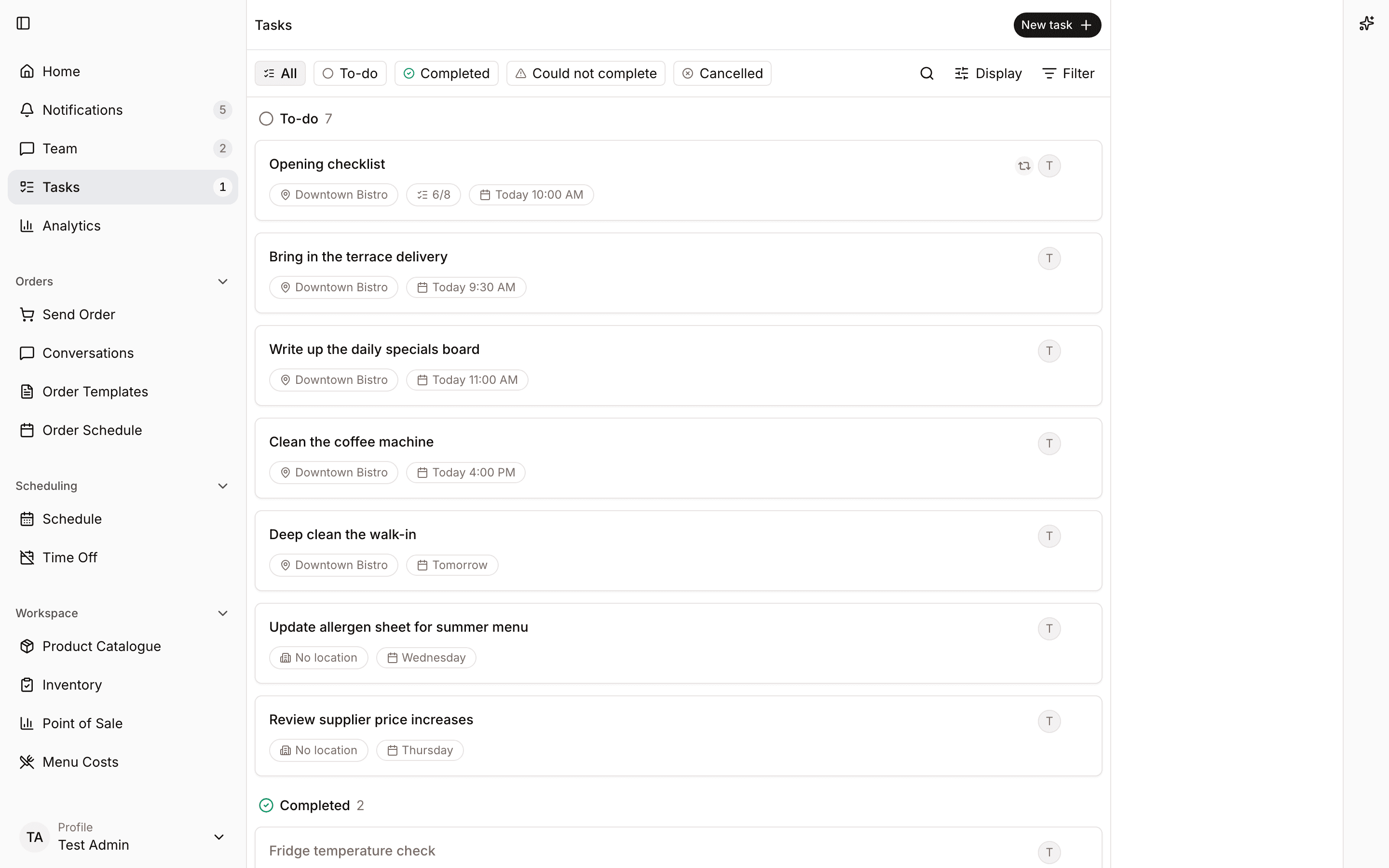
Status tabs
Along the top: All, To-do, Completed, Could not complete, Cancelled. All shows every open task plus everything closed in the last 30 days.
Search
Type in the search field to narrow the list by title.
Sorting and grouping
Open the display menu to change how the board looks:
- Sort by Manual, Due date, Created, Updated, Status, or Title, in either direction (A-Z or Z-A). The direction switch is not available for Manual. Tasks without a due date always go to the bottom when sorting by due date.
- Group by Status, Assignee, Location, or No grouping. Grouping by location only appears when you have more than one location.
Spensa remembers your choices, so the board looks the same next time you open it.
Filters
Open the filter menu to narrow the list:
- Assigned to - one or more people or positions, with yourself pinned at the top. Filtering for yourself also shows the tasks of your positions.
- Location - one or more locations, including No location for the company-wide list.
- Due - Overdue, Today, This week, or No date.
- Created - Today, This week, or This month.
- Sharing - No limit, Managers, or Me.
Active filters show as small chips above the list, for example "Due: Overdue". Click a chip to remove that filter, or click Clear all filters. If nothing matches, the board says "No tasks match these filters."
What a task row shows
The title, the assignee's picture or position names, the location (when you are looking across locations), a paperclip with the number of attached files, a visibility pill, and the due date.
Quick actions on a row
- Check the box to mark the task done.
- Click the faint circle where the assignee's picture would be to assign someone.
- The row menu offers Assign to me, Unassign, Make private or Make visible to everyone, Mark as to change the status, and Delete task.
The board loads 100 tasks at a time. Click Load more at the bottom to see the rest.
Completing tasks and other statuses
A task is always in one of four statuses:
- To-do - open and waiting. Every new task starts here.
- Completed - done, shown with a green check.
- Could not complete - someone tried but was blocked, shown with an amber triangle.
- Cancelled - no longer needed, kept for the record.
Closed tasks leave the To-do view and appear under their own status tab for 30 days. After that they drop off the board.
Marking a task done
Every task can be completed with an optional comment and an optional photo. When Photo required is on, the photo is needed.
- Open the task and click or tap Done. A Complete task window opens.
- If you like, write a note under Comment (optional), for example "Ran out of degreaser, used the spare".
- To add a photo, choose Take photo or Choose photo (on the phone: Take photo or Photo library). When Photo required is on, the window says "Add a photo of the finished work to complete this task." and you cannot finish without one.
- Click Mark done (on the phone: Done). The task shows Completed, with the comment as Completion comment and the picture as Completion photo.
Checking the box on the board completes a task right away without a comment, unless it needs a photo. On the phone, completing needs internet; a last-loaded task list is not an offline completion queue. If someone removes the completion photo later, the task goes back to To-do. The phone app confirms this first: "This removes the photo and marks the task as to-do."
When a task cannot be done
- Press Can't do (on the phone: Can't Do).
- Write a short reason, up to 1,000 characters. As the app puts it: "Add the reason so the team knows what blocked the task."
The task moves to Could not complete, and the reason is shown in an amber box on the task page.
Cancelling a task
Choose Mark as in the row menu and pick Cancelled, or change the status while editing the task. Use this for tasks that are no longer needed but worth keeping for the record.
Reopening
Completed and could-not-complete tasks show a Reopen button. Reopening moves the task back to To-do. If the list already holds 200 open tasks, Spensa asks you to complete or remove some tasks first.
Who can change a task's status
Anyone who can work with tasks on that list can check its shared tasks off. Company-wide shared tasks can also be completed by staff members who manage tasks at any location. Tasks limited to Managers or Me can only be handled by the people who can see and manage them.
Checklists
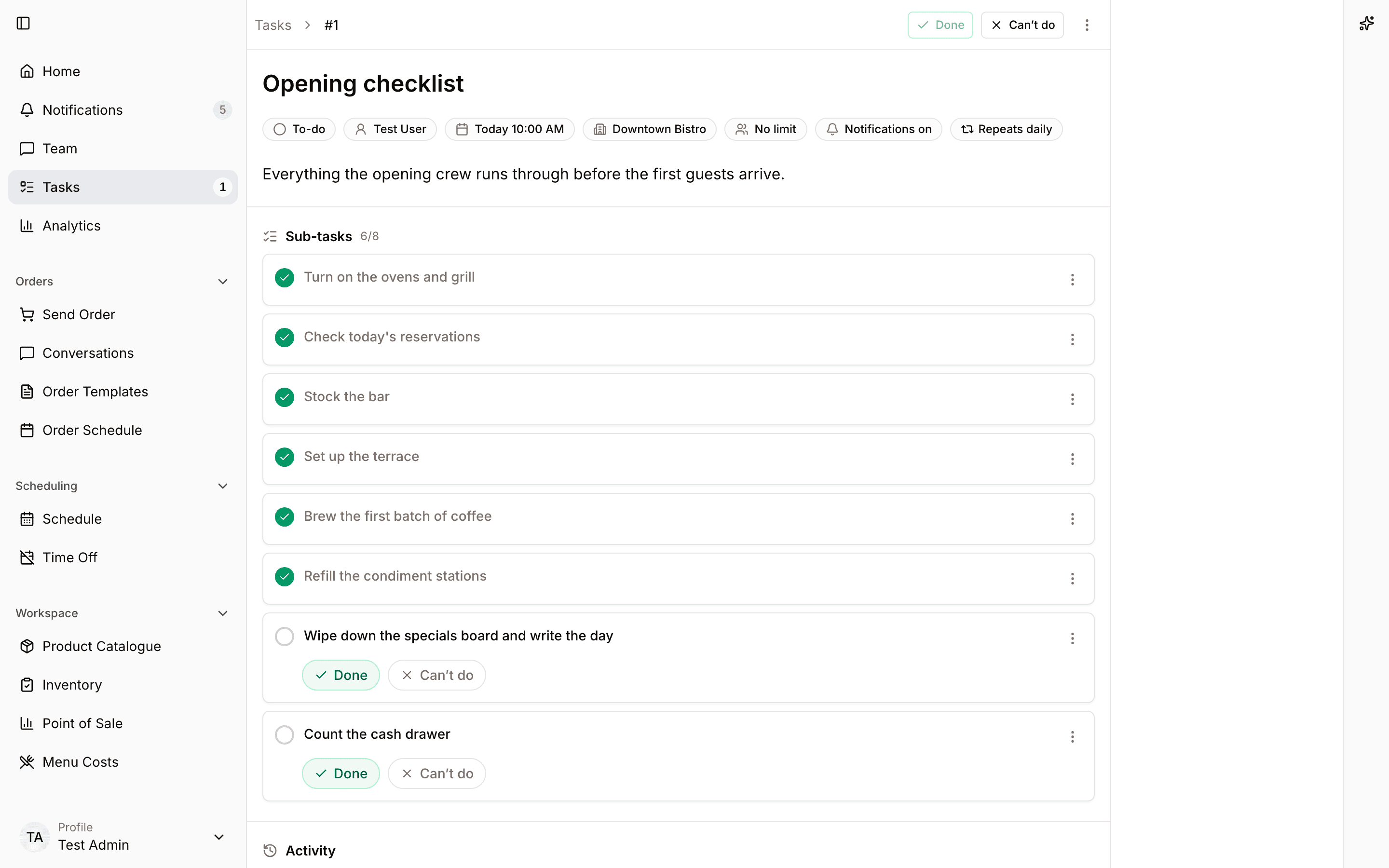
Checklists are for work that comes back on a rhythm, like opening and closing routines, fridge temperature logs, or a weekly deep clean. You build a checklist once, assign it to one or more locations with a schedule, and the team fills it in on their phones every time it is due.
Building and assigning checklists needs permission to manage tasks. Everyone a checklist is assigned to can fill it in.
Building a checklist
On the web:
-
Click Tasks > Checklists in the left sidebar, then New checklist.
-
Enter a Checklist name, for example "Opening checklist", and an optional description.
-
Under Tasks, type each task and press Add. Drag tasks to change their order.
-
For each task, choose how it is answered:
- Check off - simply done or not done.
- Yes / No - for questions like "Is the fridge door sealing properly?".
- Number - for readings like a temperature. Add a Unit, for example °C.
- Choice - pick one of at least two options you define.
- Text - a written answer.
- Photo - a picture taken on the spot.
-
Set the options for each task:
- Required - the checklist cannot be completed without an answer. Turn it off for tasks staff may leave empty.
- Allow "N/A" - only for required tasks. Lets staff mark the task as not applicable when it does not apply that day, instead of leaving it empty.
- Instructions - a note, a Reference image, or both, to show how the task should be done.
-
Optionally click Add rule to decide what happens after an answer or when the task stays undone. Under When, choose for example Below a value, Above a value, Outside a range, Answer is No, Marked as N/A, Once answered, or Not completed. Not completed is checked when the checklist is completed or missed and the task still has no answer, so it works for every kind of task, for example "Clean the grease trap" left unchecked. Then pick a Severity (Info, Warning, or Critical) and one or more Actions:
- Flag in results - highlights the answer in the results.
- Notify - sends a notice to the people informed about this checklist.
- Create follow-up task - adds a task to the location's list, with the answer in its description.
Click Done to add the rule. Closing the window without Done discards it. Click a rule to change it or Remove rule.
-
Click Create checklist. Later changes are saved with Save checklist and apply to checklists handed out from then on. Checklists already handed out keep their tasks.
A checklist can have up to 100 tasks, and a company up to 200 checklists.
On the Checklists tab, click Filter > Status to show only Assigned, Paused, or Not assigned checklists, or Filter > Location to show checklists assigned to certain locations. Click the search icon to search by name. Active filters appear as chips above the list. A paused location shows a Paused badge.
Assigning a checklist to a location
One checklist can serve several locations, each with its own schedule and people. Open the checklist and click Assign.
- Who fills in the checklist? - choose the Location, then Positions (or All positions) and, if needed, Specific people.
- How is the checklist completed?
- Together - one shared checklist. Everyone sees who completed which task.
- Each person on their own - everyone gets their own copy to fill in.
- When is the checklist due? - choose Every day, Once a week, or Custom (every few days, weeks on chosen weekdays, or months on chosen days). Set Starts on, Can be filled in from, Due at, and Ends (Never or On a date). If the due time is earlier than the start time, the checklist is due the next day, which suits closing routines. Turn on Accept late submissions after the due time if staff may still finish it afterwards.
- Who gets informed? - choose people who get a notice when the checklist is completed or a rule asks to notify. Turn on Notify them if the checklist is not completed on time to also send an overdue notice.
- Check the Next runs preview and click Assign checklist.
The assignment appears under Assigned to on the checklist. Use its switch to pause or resume it, the pencil button to Edit assignment, or the remove button to Remove assignment. Removing an assignment stops new checklists from being handed out at that location; past results stay.
Filling in a checklist on the phone
When a checklist opens, the people it is assigned to get a push notification. Tapping it opens the checklist.
- Open the Tasks tab. Today's checklists are listed under Checklists at the top, with their status, for example Due 10:00, Overdue, or From 21:00.
- Tap a checklist.
- Answer each task. Tasks marked Optional can be skipped; all others are required. Tap Mark as done, Yes or No, or a choice; type a number or text; or tap Take photo or Choose photo. Each answer is saved right away, so you can leave and come back later while the checklist is open.
- If a task does not apply, tap Mark as not applicable, when the checklist allows it. Tap Add comment to add a note to an answer.
- When every required task is answered, tap Complete checklist at the bottom of the screen. Until then it shows how many required tasks are left. After completing, the app goes back to the Tasks tab.
In Together mode everyone at the location works on the same checklist, and each answer shows who gave it and when, for example "Anna at 08:14". If an answer matches a rule, the task shows its severity and the follow-up tasks appear under Follow-up tasks.
A checklist cannot be answered before its start time ("This checklist opens at 08:00."). After the due time it is either still open as Overdue, when late submissions are accepted, or closed as Missed. Filling in a checklist needs internet. If you once declined camera or photo access, the app offers Open Settings so you can allow it there.
Reviewing results
On the web, open Tasks > Checklists and switch to Results. The list shows every checklist handed out, newest day first, under a heading for each day such as Today or Yesterday. Each row shows the checklist's status, location, time window, progress, and flags.
- Click Filter > Status to show only Open now, Overdue, Completed, Missed, or Flagged checklists. Flagged shows checklists with at least one answer that matched a rule.
- Click Date to show a single day. Choose All dates in the same picker to go back to the full list.
- Click the search icon to search by checklist name. While typing, suggestions let you filter by location or status.
- Click Filter > Location to show one or more locations.
Active filters appear as chips above the list. Click a chip to remove it, or Clear all filters. Click a checklist to see every answer, photo, comment, who answered, and any follow-up tasks. Managers can Reopen a completed checklist so it can be changed again. Managers can also do this on the phone with Reopen checklist.
Replacing repeating tasks
Checklists replace repeating tasks. Existing repeating schedules were turned into checklists with the same tasks, assigned to the same location and people, and completed together. Tasks already created by those schedules stay in the task list.
Editing, moving, and deleting a task
Editing
Open the task's menu and choose to edit it. On the phone the menu entry is Edit task. The edit form is the same as the create form, plus a Status field. To mark a task as Could not complete, use the Can't do button so a reason gets recorded.
Moving a task to another list
Change the task's location in the edit form to move it between location lists, or to and from the company-wide list. You need permission to manage tasks on both lists. The task keeps its number and its assignee.
Deleting
- On the web, choose Delete task from the row menu or the task page menu. The task disappears and an undo option appears briefly. Undo brings the task back as a fresh copy with a new number - the checklist, files, and history are not restored.
- On the phone, choose Delete task and confirm. The app warns "Delete this task?" - "This can't be undone."
Deleting removes the task together with its files and history.
The activity timeline
Every task page has an Activity section that lists what happened and who did it: created, renamed, description edited, due date changed, assigned or unassigned, moved to another list, visibility changed, photo requirement changed, completed, could not complete (with the reason), cancelled, and reopened. The timeline loads 20 entries at a time. Even if someone later leaves your company, the history stays.
Notifications
- When someone assigns a task to you or to one of your positions, you get a notice: for example, "Anna assigned you 'Order napkins'". It arrives as a push notification on the phone, and for company members also in the notification center. Assigning a task to yourself sends nothing.
- When a task you created is completed, you get a notice. To stop these, open your account settings on the web, or Settings on the phone, and turn off Task completed notifications under Notifications.
- The creator and the assignee also get a notice when a task is marked as not completed, cancelled, reopened, reassigned, unassigned, or when its due date changes. Edits to the title or description do not send notices. You never get a notice about your own change.
- Turn per-task notices on or off from the task page menu with Enable notifications and Disable notifications. A short confirmation explains what changes.
- The sidebar and the phone app always show how many open tasks and checklists are assigned to you.
- There are no automatic reminders when a due date approaches or passes. If something must happen, assign it to a person - they get the assignment notice.
- Tapping or clicking a task notice opens the task. Checklist notices open the checklist.
More on how notices work in Notifications.
Tasks on the phone app
The phone app carries the full tasks feature, built for quick use during a shift.
- Company members see tasks from all locations. Staff members see the task list of their location.
- The list groups tasks by due date out of the box. The display screen lets you group by Status, Assignee, or nothing instead, and change the order - "Tap an ordering row again to reverse order." The filter screen offers the same filters as the web plus a status choice, with "You" pinned in the people list. The phone remembers your choices. Pull down to refresh, and the list loads more as you scroll.
- Creating: see "Creating a task" above, including Speak task.
- The Tasks tab shows your checklists for today at the top. Each card shows its status and progress, for example Overdue and "2 of 6 done". Below them, Today lists overdue tasks, tasks due today, and open tasks without a due date. See "Checklists" below.
- The task page shows the details first, with an overdue due date marked Overdue, then the description, files, the Done button, Can't Do, Reopen, the completion photo, and the activity timeline. Tasks created by a checklist rule show a From checklist pill that opens the checklist. Files open in your browser. The top menu holds Edit task, the notification switch, and Delete task.
- Without internet you can still read the last loaded list. The screen says "You're offline. Showing the last loaded list." You need a connection to create or change tasks.
See Mobile app for setting up the phone app.
How this connects to other parts of Spensa
- Notifications - assignment and update notices arrive in the notification center and as push notifications.
- Analytics and home - the company home page has a Tasks box you can keep in your home layout, and each location's home page is its task board.
- Assistant - ask the assistant to create, update, complete, or delete tasks and attach files you shared in the chat. It asks for your approval before deleting a task, and it can answer questions about your tasks.
- Team and permissions - roles and custom roles decide who can view and manage tasks.
- Mobile app - the whole tasks feature works on the phone.
Good to know
- A list can hold up to 200 open tasks. Completed, could-not-complete, and cancelled tasks do not count. When a list is full, Spensa says "This list is full. Complete or remove some tasks first." This also applies when reopening a task or moving one onto a full list.
- A task can have up to 10 files at once, each file up to 20 MB. Supported files are images (JPEG, PNG, WebP) and PDFs. If a file does not fit, Spensa tells you: "That file type is not supported. Use an image or a PDF." or "That file is too large. Please choose one under 20 MB."
- Titles can be up to 200 characters, descriptions up to 5,000, and could-not-complete reasons up to 1,000.
- Closed tasks stay visible in their status tabs for 30 days after closing, then leave the board. There is no way to browse older closed tasks.
- Completion photos live in their own Completion photo spot, not in the file list, and the paperclip count on the board does not include them. They cannot be removed from the file list - removing one through its own remove action puts the task back to open.
- The people picker shows up to 200 people. If you try to assign someone or a position that cannot take tasks on that list, Spensa says "That person or position can't be assigned here."
- When a person leaves your company or is archived, tasks and their history stay in place. Their open tasks become unassigned so you can hand them to someone else, and they are removed from checklist assignments and from the people informed about checklists.
- If a change cannot be saved, the board puts things back the way they were and shows "Couldn't save - please try again."
- There is no calendar view of tasks and no export.