Analytics and Home
On this page
The Home page is where your day starts. It gathers what needs your attention: orders to review, invoices to check and today's deliveries. The Analytics page shows how your business is doing over time: what you spend, what you sell, how your menu is priced and what your stock is worth. This chapter also covers search, the quickest way to move around Spensa.
What this is for
- See open work at a glance on your Home page
- Rearrange or hide the boxes on your Home page
- Follow the getting-started checklist when your company is new
- Track spending by supplier, category and product
- See which purchase prices went up or down, and what that costs you per year
- See sales from approved till reports
- Compare your menu prices with recommended prices
- Follow your stock value from count to count
- Jump anywhere in Spensa with search
Where to open it
Home and Analytics live on the web app. On the phone, daily ordering and delivery work starts in Orders.
- Home: in the left sidebar under Home.
- Analytics: in the left sidebar under Analytics. The page has tabs at the top: Price changes, Invoices, Sales, Menu and Inventory. You only see the tabs you have access to.
- Search: press Cmd+K on a Mac or Ctrl+K on Windows, on any page.
Access and permissions
Company members see the Home page on the web. Which boxes and cards appear depends on what you are allowed to view. Location staff see a task board as their home instead (see "The Home page at a location" below).
For Analytics, owners and admins see every tab. For other company members it depends on their role:
- Price changes needs permission to view analytics.
- Invoices needs permission to view analytics.
- Sales needs permission to view invoices.
- Menu needs permission to view analytics and the menu.
- Inventory needs permission to view or manage inventory.
If none of the tabs are open to you, the Analytics entry does not appear at all. You can give people access with a custom role. See Team and permissions.
Your Home page
The Home page collects six boxes in one place:
- Assistant - ask the assistant anything, right from Home. Type a question or tap an example. See Assistant.
- Tasks - your company task board, with New task and assignees. See Tasks.
- Review & to-dos - small cards that count open work and take you straight there:
- "Invoices - Pending Review": invoices waiting for your review.
- "Orders - Pending Review": orders waiting for a decision.
- "Products - Incomplete": products without price information yet.
- "Recipes/Menu items - Incomplete": recipes and menu items whose costs are not complete yet. Click the card to open Menu with All selected and the Incomplete filter applied.
- Each card only appears if you are allowed to view that area.
- Recent Orders (24h) - the last 5 orders sent in the past 24 hours, with supplier, location and items. View all opens the full order list. When nothing was sent it says "No orders sent in the last 24 hours."
- Today's order schedule - which recurring orders are due today. See Order schedule.
- Deliveries today - the deliveries you expect today.
Make the Home page yours
You can rearrange the Home page to fit how you work.
- Click Customize on the Home page.
- Drag the boxes into the order you like.
- Click the eye icon on a box to hide or show it.
- Click Done to save.
Your layout is saved for you personally. Teammates keep their own arrangement. Reset to default brings back the original layout.
The getting-started checklist
When your company is new, the Home page helps you set up.
- Before you pick what you want to start with, Home shows a welcome panel.
- After that, a checklist appears above the boxes. The steps depend on your focus. For ordering: add a supplier, add products, create an order template and send your first order. For cost calculation: add a supplier, add products, create a dish and complete its cost.
- The checklist can take you back to your guided welcome chat with the assistant.
- The checklist disappears once everything is done.
At the bottom of the Home page, a "How Spensa works" link opens an overview of how the pieces fit together. See Getting started.
The Home page at a location
Location staff have a simpler home. (The app sometimes says "establishment" where this guide says "location".) Their home page is the location's task board. Staff see the location's tasks and work through them there. People with task rights can add tasks with New task. See Tasks.
Price changes
The Price changes tab shows which products recently got more expensive or cheaper, and what each change means for a whole year.
New price increases
When products get more expensive on invoices from the last 2 weeks, a number appears next to Analytics in the sidebar and on the Price changes tab. It counts the new price increases you have not marked as seen yet.
- Click Analytics in the sidebar and open the Price changes tab.
- The New price increases box at the top lists each product that got more expensive. Each row compares the product's latest price with its price before these 2 weeks, so only products that are more expensive overall appear. Click a row to see its price history and the invoices behind the change.
- Click the check mark button (Mark as seen) on a row once you have noted the increase. The product stays in the list without the button and its blue dot, and both numbers go down by one. Click Mark all as seen to mark every product in the list at once.
Marking an increase as seen only applies to you. If the same product's price changes again on a later invoice, it counts as new again. When no product got more expensive in the last 2 weeks, the box is hidden.
All price changes
- Pick a time range at the top: Last 30 days, Last 3 months or Last 12 months. Use the locations button to focus on one or more locations.
- Pick a list: All, Increases, Decreases or Needs review. Sort by Newest or Biggest effect.
- Click a product row to see its price history and every change, each with a link to the invoice. Click Open product to go to the product.
Each row compares the product's latest price with its price before the time range. The yearly amount is the price difference multiplied by how much of the product you bought in the last 12 months. If you have bought a product for less than a year, that quantity is scaled up to a full year. The amounts assume prices stay as they are now.
Needs review collects prices that at least doubled or halved from one purchase to the next, usually because a pack size or unit was read differently. Open the product with Check product units to correct its units.
Invoices
The Invoices tab shows where your money goes and how your purchase prices change, based on approved invoices.
Pick a time range
- Click the date button at the top. It shows the current range, for example Last 3 months.
- Pick a ready-made range: This month, Last month, Last 30 days, Last 3 months, This quarter, Last quarter, Year to date or Last 12 months.
- For your own dates, click a start day and an end day in the calendar and click Apply. A range can be up to 12 months long.
You can also click a bar in "Spend over time" to zoom into that week or month.
Compare with the past
Next to the date button, open the vs menu:
- Previous period compares with the same number of days just before your range.
- Same period last year compares with the same dates one year earlier.
- Custom comparison lets you pick any comparison dates. Click the second date button that appears, choose the dates and click Apply.
- No comparison turns comparison off.
If there are no invoices in the comparison dates, the bar says "No invoices in the comparison period" and the page shows only the current range.
Filter by location, supplier or category
- Use the locations button to pick one or more locations. Leave it on All locations for the whole company.
- Click Filter, then Supplier or Category, and tick what you want to see.
- You can also click a supplier or category in the lists on the page to filter by it. Click it again to remove the filter.
- Active filters show as chips under the bar. Click the x on a chip to remove it, or Clear all to remove every filter.
Everything you choose is part of the page address. Copy the address to share the exact same view with a teammate.
What you see
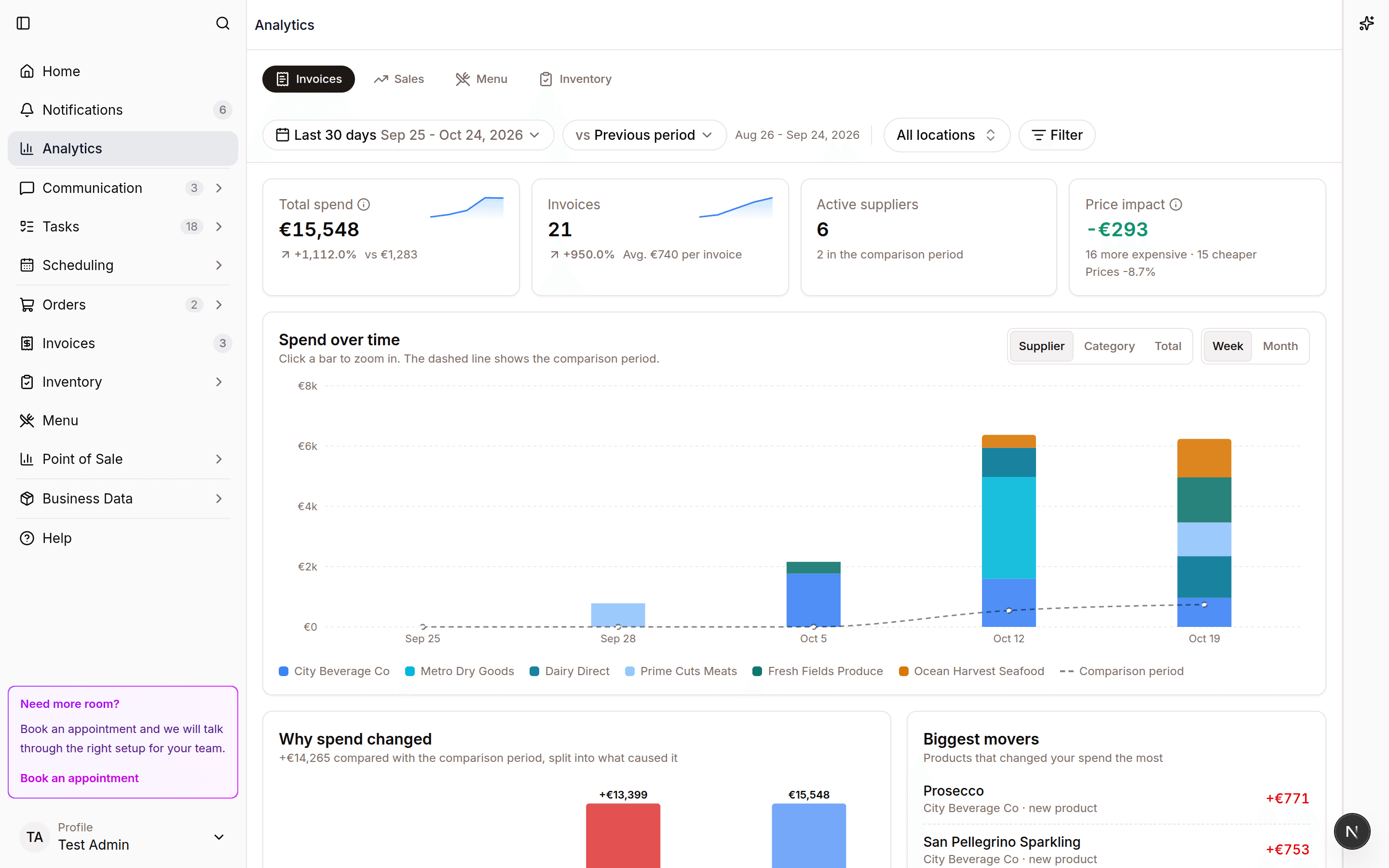
- Cards with your total spend and the price impact (see below). With a comparison, the spend card also shows the change.
- Spend over time shows spend per week or month. Split it by Supplier, Category or show the Total. The dashed line is the comparison period. Point at a bar to see the details.
- Why spend changed splits the difference to the comparison period into what caused it: higher or lower prices on the same products, buying more or less of the same products, new products, and products you no longer buy.
- Suppliers and Categories list your spend with each share and the change. Click Show all to see the full list.
- Products lists every product you bought with quantity, average price, spend and the change. Click a product to open it.
Price changes
The Price changes section shows which products got more expensive or cheaper. It compares each product's latest price in the range with its price when the range started. Prices are per unit after recorded discounts.
- Read the summary. "Price impact" is how much more or less you paid for the quantities you bought. "Price trend" is how your prices moved overall, weighted by what you spend.
- Pick a list: Increases, Decreases or Needs review. Sort by € impact, % change or Date.
- Click a product row to see its price history and every change, each with a link to the invoice. Click Open product to go to the product.
Needs review collects prices that at least doubled or halved from one purchase to the next. That usually means a pack size or unit was read differently than on earlier invoices. These prices are left out of the price impact and the price trend. Open the product with Check product units and correct its units if needed.
Sales
The Sales tab shows your revenue from till reports (called Point of Sale in the app). It fills up automatically once till reports are approved. See Point of Sale.
- Pick a range at the top: All, 1y (one year), 3M (three months), 1M (one month), YTD (the year so far) or MTD (this month so far).
- Filter by location.
- The total for your selection shows as "Selected sales".
If you also have access to Menu, a second chart appears below. It combines your sales with your menu costs to show the margin per menu item.
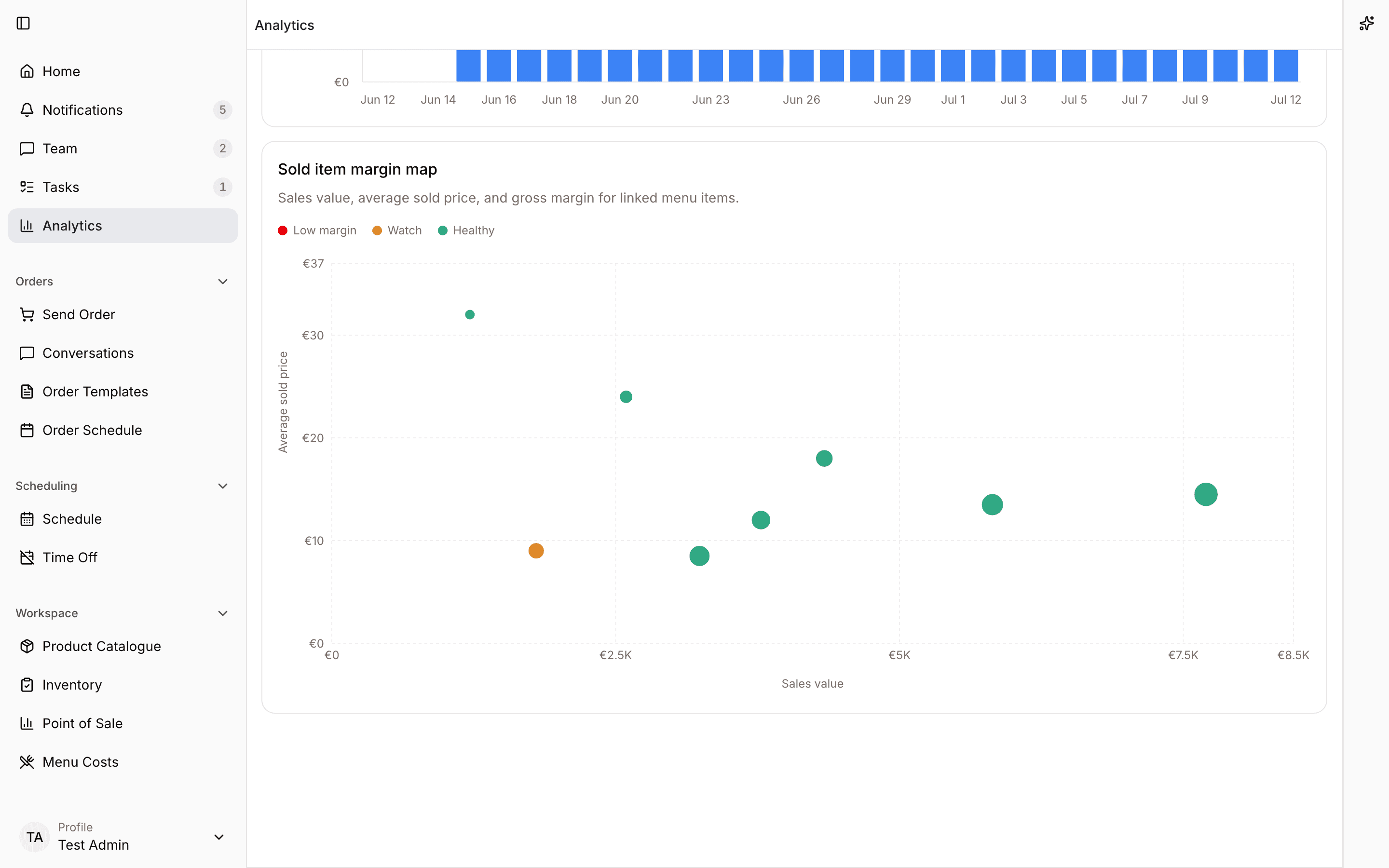
Before any reports are approved, the tab says "No sales data yet" and "Sales appear automatically once Point of Sale reports are approved." A range without sales says "No sales data for this range".
Menu
The Menu tab shows how your menu prices compare to the recommended prices. See Menu.
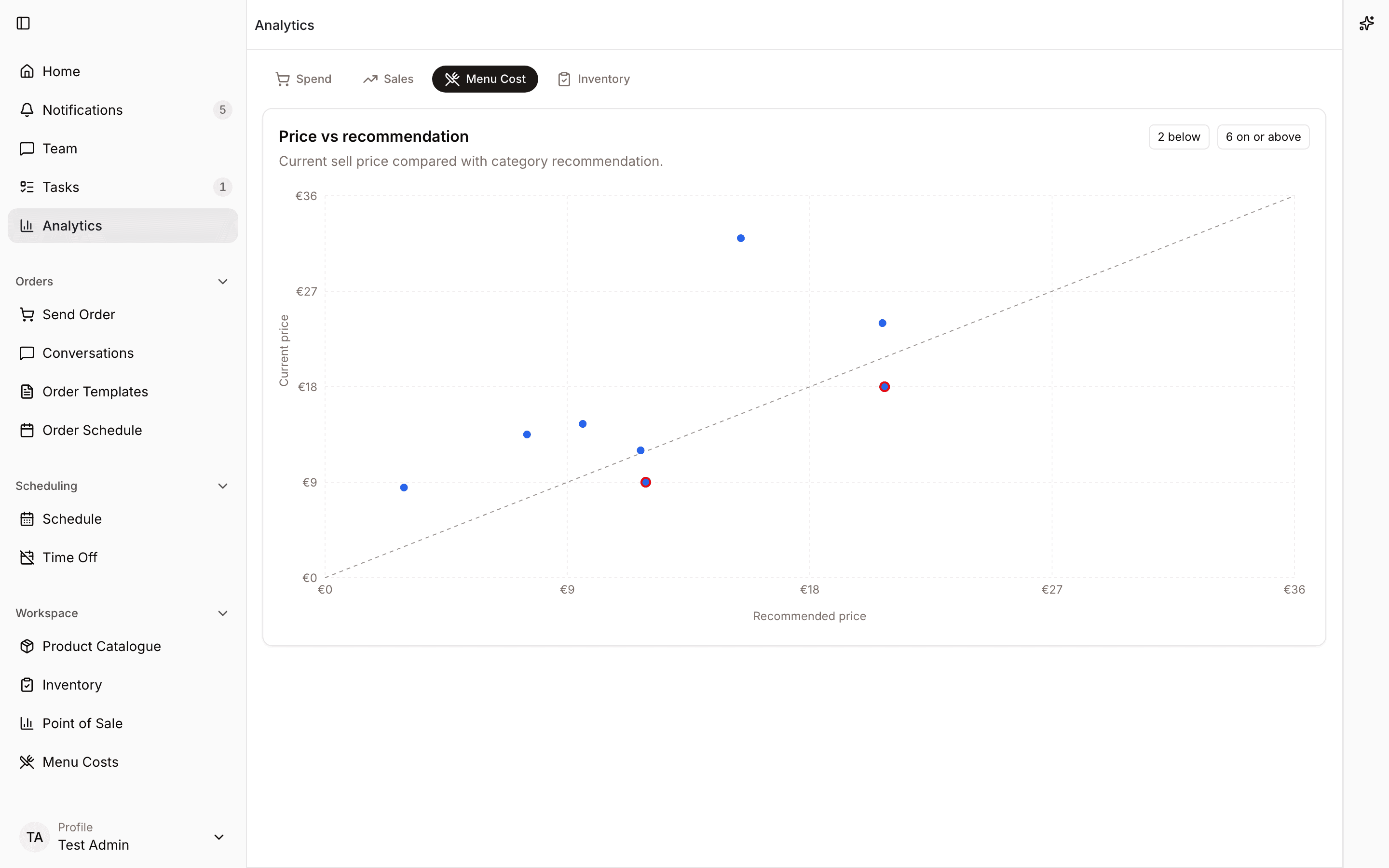
- Every menu item appears as a dot: its current price against the recommended price for its category. Colors follow your menu categories.
- Items priced below the recommendation get a red outline.
- Dots on the diagonal line are priced exactly at the recommendation.
- Two small counters show how many items are below and how many are on or above the recommendation.
- Point at a dot for the details: current price, recommended price, the gap (in money and in percent), markup, recommended markup and margin.
- Click a dot to open that menu item's cost page.
Items missing a price, a category or a complete cost are left out of the chart. A note underneath links straight to those items so you can complete them. With very many menu items, the chart shows the first ones and tells you how many are shown.
If you have no menu items yet, the tab says "No menu items yet". If none are ready, it says "No ready menu items yet". Both offer a Go to menu button.
Inventory
The Inventory tab shows what your stock is worth, count after count. It uses your finalized inventory counts. See Inventory.
- With more than one location, pick a location at the top. The tab starts on the location with the most recent finalized count.
- The headline card shows "Stock value" from the latest count. It also shows the count date, how many products were counted and the change compared to the previous count. Green means the value went up, red means it went down.
- "Stock value per count" is a bar chart with one bar per count. Each bar is split by your top 5 product categories, with the rest as "Other".
- Counts taken on the same day are added up and shown as one bar, for example when the bar and the cellar are counted separately. If a product is in more than one of them, the later count is used. The headline card then says how many counts that day has.
- "Where the value sits" ranks the categories of the latest count. Each category shows its share and its change since the previous count.
Notes under the charts explain the numbers. Values use each product's latest known price. Items without a price are pointed out. The view covers your most recent counts and says how many are shown.
Before your first finalized count, the tab says "No finished counts yet" and "Finish your first inventory count to see how your stock value develops." If you manage inventory, a Go to inventory button takes you there.
Finding things fast
Search takes you anywhere in Spensa in a couple of keystrokes.
- Press Cmd+K on a Mac or Ctrl+K on Windows. A search box opens that says "Search pages, tools, and records...".
- Type what you are looking for.
- Pick a result and press Enter to open it.
Use suggestions in a feature list
Many web lists also show suggested filters while you type in that list's own search field.
- Open a list such as Products and type a supplier or category name in its search.
- Click the matching suggestion pill, for example a supplier or category. This applies the filter and clears the search text.
- Check the active filter chip, then type another search if needed to narrow the filtered results.
- Remove the chip or click Clear all filters to widen the list again.
Typing alone does not apply a suggestion. These list filters are separate from the app-wide Cmd/Ctrl+K search.
Jump to pages
Type the name of a page to jump straight to it: Home, Notifications, Analytics, Orders, Order Templates, Order Schedule, Suppliers, Schedule, Time Off, Products, Product groups, Inventory, Point of Sale, Menu or Invoices. Settings pages are there too: General, Establishments, Members, Employees (both open the team pages described in Team and permissions), Categories, Billing, Inbound email, Language and Account.
Quick actions
Some entries start something right away: New order, New product, New supplier, Upload invoice and New establishment (a new location).
Find your records
Type a name and search finds matching records everywhere: suppliers, products, orders, order templates, invoices, invoice uploads, inventory counts, storages, till reports, till catalogue items, menu items, recipes and locations. To search one kind only, pick its group first (for example Products) and then type. Every result shows its name and status. A few handy details:
- Products also match their supplier item codes.
- Invoices match the invoice number.
- Orders match the supplier name or the items inside the order.
- If you belong to more than one company in Spensa, you can search and switch between them too.
Do something with a result
Selecting a record gives you actions beyond Open:
- A supplier offers Show products, Show invoices, Show orders, Show order templates and Start order.
- A location offers Open staff app, Show orders, Show invoices, Show order templates, Show inventory and Show scheduling.
- A product offers Edit.
Find old assistant chats
Your assistant chats are searchable by their title. Picking one opens the chat so you can continue it. See Assistant.
Recents and moving around
With an empty search box, your last 8 picks show under "Recent". Press Esc to go back one level. Backspace in an empty search box does the same. Search only ever shows pages and records you are allowed to open.
How this connects to other parts of Spensa
- Invoices - the Invoices tab is built only from approved invoices, so approving invoices feeds your analytics.
- Point of Sale - the Sales tab fills up as till reports are approved.
- Menu - the Menu tab uses your dish costs and recommended prices, and every dot links to a dish.
- Inventory - the Inventory tab uses finalized counts and each product's latest price.
- Orders - Home shows recent orders and orders waiting for review.
- Order schedule - Home shows today's ordering slots and expected deliveries.
- Products - Home counts products that still need price information.
- Tasks - the Tasks box on Home and the location task board show the same tasks.
- Assistant - Home has an assistant box, and search finds your old chats.
- Getting started - the checklist on Home guides new companies through setup.
- Notifications - the Notifications page is one search jump away.
Good to know
- There is no download or export from Analytics yet. To share a view, share the page address or a screenshot.
- Price increases you mark as seen stay marked on every device you sign in with. Teammates still see them until they mark them as seen themselves.
- Old links to the Spend tab open the Invoices tab.
- Your Home page layout is personal. Rearranging or hiding boxes never changes what teammates see.
- Old bookmarks that pointed to analytics on the Home page open the Analytics page automatically.
- The "Recent" list in search is remembered on the device you are using.
- Location staff searching in Spensa only see records for their own locations.
- The app sometimes says "establishment" where this guide says "location".