Inventory
On this page
Inventory is where you count your stock, record what was wasted, move stock between places, and see what your stock is worth. You count what is on the shelf, Spensa remembers it, and managers get a clear picture of stock and value without anyone building a spreadsheet.
What this is for
- Count the stock in a place like the walk-in fridge or the bar
- Save those places as storages, so the next count is ready for you
- Count with several people at once, each in their own storage
- Count in several units at the same time, like "2 cases + 3 bottles"
- Record waste, spoilage, staff meals, breakage, and giveaways
- Add stock to a storage by hand
- See deliveries from approved delivery notes as stock coming in
- Move stock from one storage to another using Move, if offered under New
- Finalize a count to lock it, then export it as a CSV or Excel file
- See the value of your counted stock in Analytics
- Count on the phone, even without internet
Where to open it
Inventory is available to every company on the web and phone app. Your role determines what you can see and do.
On the web, click Inventory in the left sidebar. It opens a menu with these pages:
- Inventory counts has two tabs. Counts lists your counts, newest first. Storages shows your saved counting lists.
- Stock in & out lists moves, deliveries, added stock, and waste, newest first.
- LIVE inventory shows the worked-out stock of your drinks, if your company uses it. See See live inventory for drinks.
Location staff signed in to a location see Inventory counts and Stock in & out directly in the left sidebar, depending on their permissions.
On the phone app, Inventory is in the main menu. It has an Activity view with counts, waste, added stock, and moves together, plus deliveries from approved delivery notes while you are online, a Storages view, and a New entry button.
Everything in Inventory belongs to one location. Some screens may say "establishment" - that is the same thing as a location.
Access and permissions
- Owners, admins, and managers at the company level can do everything: count, manage storages, record waste and movements, finalize counts, and reopen them.
- Company members with the User role can see inventory and storages and record waste, moved stock, and added stock. They cannot count and cannot finalize.
- Company members with the Viewer role can look at inventory and storages but not change anything.
- Location managers can count, manage storages, record waste and movements, finalize counts, and reopen them.
- Staff members can count and record waste, moves, and added stock. They cannot change saved storages and cannot finalize a count - the review page tells them to ask a manager.
- Location staff with a viewer role do not see inventory at all.
- You can fine-tune all of this with custom roles. See Team and permissions.
Storages: saved lists for the places you count
A storage is a saved list of what belongs in one place, like "Walk-in fridge", "Bar", or "Dry store". Count a place once and save it as a storage. The next time, the list is ready and you only fill in the numbers. Storages can hold products and recipes.
On the Storages tab, each storage shows its name, its location, how many items it holds, and when it was last counted. You can expand a card to preview the first items, and start a count there right away with Start inventory count. You can search storages, sort them by name, item count, or creation date, and filter by location on the company-wide page.
Create a storage
- Open the Storages tab.
- Click New storage.
- Type a name, for example "Walk-in", "Bar", or "Dry store", and pick the location.
- Confirm to create it.
Each name must be unique within its location. You can have up to 64 storages per location.
Storages also get created in other places: while starting a count (type a new name), on the finalize review (save a one-off area for next time), through sheet import, and when you add stock (the received items join the target storage's list).
Edit a storage
Open a storage from the Storages tab. You see its items, its location, and when it was last counted. If a count is running there right now, a note says so, with a Resume link that takes you straight into it.
Click Edit to change the storage:
- Rename it.
- Click Add items to pick products and recipes from your catalogue, up to 50 at a time. A storage holds up to 1,000 items.
- Select items and remove them.
- Drag items into the order that matches your shelves. You can switch between Manual order and A-Z, and reset back to your manual order.
- Click Add section to split the list into sections, like "Top shelf" or "Freezer". Sections can be renamed, moved, and deleted. When you delete a section, its items stay in the list and move into the previous section.
Only managers can create and change storages. Staff members count against them but cannot change the saved lists.
Counting units
Every packaging layer on a product is available while counting. For example, a product set up as cases, bottles, and millilitres gets a separate counter for each of those units. This also applies to products with only one unit, so every product uses the same counting layout.
Counting units come directly from the Product Catalogue. To add or change a packaging unit, edit the product's unit structure. A compatible weight or volume measure is included automatically for open or partial containers.
You do not need a default ordering unit or ordering quantity to count a product. Count its cases, bottles, pieces, or weight/volume directly. Changing how you order a product does not change the physical amounts already saved in a count.
Delete a storage
Open the storage and choose Delete storage. Past counts keep their names and numbers, so you lose nothing that was already counted.
Import storages from a sheet or photo
If you already have counting sheets on paper or in a file, you can turn them into storages without typing everything in. This works on the web, on the company-wide Inventory page.
- Open the Storages tab and click Import from file/photo.
- Pick the location and add your files: up to 10 files, PDF or image, each up to 20 MB.
- Spensa reads the sheets and matches the items to the products in your catalogue. You can watch the progress while it works.
- Review the result. Matched items are ready to place. For unmatched items, you can link each one to an existing product or add a product from your catalogue.
- Put the items into storages. You can create a new storage or add items to an existing one.
- Click Save all storages.
If you upload sheets that were imported before, Spensa warns you and shows when each file was imported. You can still choose Upload anyway. If you change your mind about the whole import, choose Discard batch.
Reading sheets counts toward your monthly allowance for automatic document reading. If the allowance is used up, the remaining sheets cannot be read this month.
Record something new
On the web, start a count with New count at the top of Inventory counts. Record a move, added stock, or waste with New at the top of Stock in & out. On the phone app, one New entry button offers all of them. Spensa asks what you would like to record:
- Count - record what is in a storage right now.
- Move - move stock from one storage to another. Use this option if it appears under New.
- Add stock - record stock received or added manually.
- Waste - record stock that was thrown out or lost.
You only see the choices you have permission for.
Start a count
- Open Inventory > Inventory counts and click New count. You can also click Start inventory count on a storage card in the Storages tab.
- Pick the location. If a count is already in progress there, a banner says "A count is already in progress." with a Continue button that opens it. You can still start a new one if you need to.
- Pick the storage you want to count. You can search the list. If the place has no storage yet, type a name and start the count in a new storage. Spensa creates it and takes you straight to counting.
- If someone is already counting that storage in another open count, Spensa asks what to do. Join that count puts you into their count. Count it anyway starts your own.
The counting screen
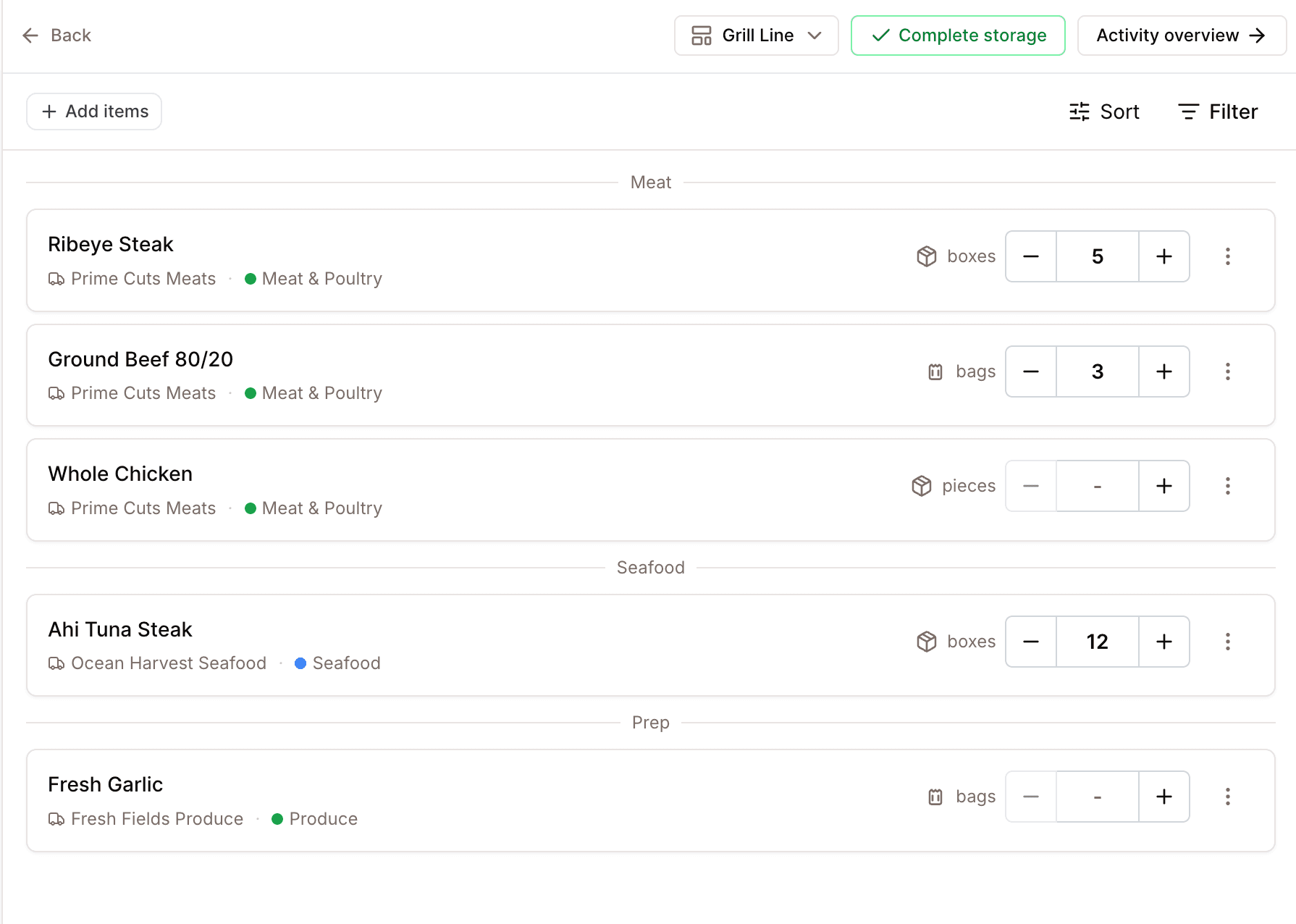
The counting screen shows one storage at a time as a calm checklist, in the order the items sit on your shelves. Everything you enter saves by itself. There is no save button, and you lose nothing by leaving the page. The screen shows how many items you have counted out of the total.
- Go item by item. Type the quantity you see, or use the plus and minus buttons.
- Leave an item blank if you did not count it. Blank means "not counted". If a shelf is truly empty, type 0. Zero is a real count.
- Add a note to an item if something needs explaining.
Counting in several units at once
You get one field for every unit in the product's packaging setup. To count "2 cases + 3 bottles", type 2 in the cases field and 3 in the bottles field. Spensa adds it up and shows the total. Products with one unit use the same field style. You can use up to 12 unit lines per item.
Finding items
- Search finds anything in your whole catalogue, not just this storage.
- Filter by category, supplier, or section. You can also show only uncounted items, only products, or only recipes.
- Sort by shelf order, name, supplier, or category.
Counting a place without a saved list
If you count in a brand-new or empty storage, Spensa offers your recently ordered products so you are not staring at an empty page. A scope choice controls what is suggested: items ordered in the last 30 days (the usual choice), the last 60 or 90 days, the items on your order templates, or your entire catalogue. Spensa remembers your choice for next time. Search always looks through everything, whatever the scope.
Adding items while you count
Found something on the shelf that is not on the list? Click Add items and pick products or recipes from your catalogue, up to 50 at a time. They join your count as uncounted rows. This never changes the saved storage. You decide about that later, on the review page.
Counting items that are not in your catalogue
If search finds nothing, choose Add item below the search field to count a product or recipe that is not in your catalogue yet. Give it a name, a unit, and the amount you see. A count can hold up to 200 of these items.
Such an item belongs to the whole count, not only to the storage where you added it. To count it in another storage, search for its name there and enter the amount. Spensa adds up the amounts from all storages, so you get one total at the end of the count.
Removing items
You can remove any item from the count. If the item is on the saved storage list, Spensa treats this as a suggestion to remove it from the storage too, and you decide on the review page. Managers also get a stronger option that removes the item from the saved storage right away.
Counting recipes
Recipes can be counted too. A recipe with a batch size is counted in batches, and Spensa shows how much one batch is. Other recipes are counted in pieces. Recipe rows never show any cost or price.
Counting in a different unit
Sometimes an item on the shelf is easier to count in another unit, for example bottles of a wine menu item that is normally counted in portions. This works on web and in the mobile app:
- Open the more actions menu next to the product, recipe, or menu item.
- Choose Count differently.
- Choose a unit. On web, click Confirm.
What happens next depends on the unit:
- Units the item already understands get counted straight away. For a product, that is any unit in its packaging setup. For a recipe counted by weight or volume, that is any other weight or volume unit; for example, choosing grams switches the counter from kilograms to grams.
- Any other unit, like bottles of a menu item counted in portions, gets its own counter below the item. These amounts are kept with the count but are not added to the item's total yet. Click the Remove unit button next to the counter if you added it by mistake.
Before the count can be finalized, a manager converts these amounts on the Review counted units page; see Review counted units.
More storages and more people
Open the storage switcher at the top of the screen to see every storage in this count with its progress, jump between them, open the All storages overview, or click Add storage to count. You can keep up to 5 unfinished storages open at once in one count. The same "already being counted" question appears if someone else is counting the storage you add.
Several people can count in the same count at the same time, each in their own storage, and every storage shows who counted it.
You can also remove a storage from the count through its details menu. A count must keep at least one storage. Removing the last one deletes the whole count.
Finish a storage
When a storage is fully counted, mark it done. A storage containing only custom products or recipes can be completed too, including items counted as zero.
- Click Complete storage.
- If some items on the list are still blank, Spensa asks whether to continue with uncounted items. Continuing records them as "not counted". If you have not entered anything at all, you can delete this storage count instead. If the storage has no items at all, Spensa asks whether to remove it from the count.
- The storage is marked done and becomes read-only. Click Reopen storage if you need to change something.
After you finish a storage, Spensa takes you to the review page.
Review and finalize
Finalizing closes the count and locks the numbers. It is a manager step. If you cannot finalize, the page tells you to ask a manager.
The review page shows how many items were counted across how many storages, and when the count started. Every storage must be finished before you can finalize. If some are still in progress, a warning shows how many. Each storage has its own card with its state, who counted it, how many items it has, and a link back to it.
On the review, you also decide what happens to your saved storages:
- New items: items you counted that are not yet on the saved storage are listed per storage and checked by default. Checked items are added to the storage when you finalize, so the next count already includes them. Uncheck any you do not want to keep.
- Removals: items you marked for removal while counting are listed and checked by default. Checked items are removed from the saved storage.
- Save these storages for next time?: if you counted in a one-off place without a saved storage, tick the box and give it a name. Spensa saves it as a storage with everything you counted.
These storage choices only appear if you are allowed to manage storages.
Open Review all items counted to double-check the full list. It is grouped by category, shows totals per unit and per storage, and can be searched.
When everything looks right, click Finalize count. The button reads Save & finalize when you also selected storage changes. You need at least one counted item, or at least one removal, before you can finalize. Custom products and recipes count toward this requirement on web and mobile; you do not need to add a catalogue item to finalize a custom-only count.
Review counted units
If someone counted an item in a unit it cannot convert on its own, Finalize count opens the Review counted units page instead. You need permission to manage products and to edit finalized counts. Without it, Spensa shows a message that some counted units need review; ask a manager who has these permissions.
- The page shows one item at a time with what was counted, where, and by whom.
- For each entry, type the converted amount under Correct to and choose the unit. Products offer the units of their packaging setup; click Edit unit structure to add a missing one. Recipes and menu items offer the units they are counted in, such as portions or kilograms. For example, 2 bottles of a menu item served as 0.15 l portions from 0.75 l bottles become 10 portions.
- Click Confirm corrections. The converted amount is added to the item's total in this count only. The product or recipe itself does not change.
- When every item is reviewed, Spensa shows All counted units reviewed. Click Finalize count on web, or tap Continue to finalize in the mobile app.
What finalizing does
- The count is locked. Its quantities become the fixed record for that day.
- List items nobody touched are recorded as "not counted", so you can always tell counted-as-zero from skipped.
- The storage changes you chose on the review are applied.
- Managers at that location, plus company admins and managers, get a notification that the count was completed.
Reopen a finalized count
Managers can reopen a finalized count with Reopen inventory. Spensa explains what happens before you confirm: the whole count opens again, including finished storages, and the recorded values are no longer locked until you finalize again. The checklists refresh to the current storage lists and keep what was already counted. Managers are notified again when you re-finalize.
While a count is still open, you can reopen and re-finish individual storages as often as you need. You can also rename an open count.
Record waste
Use this whenever stock leaves the kitchen without being sold: spoiled goods, a dropped tray, a staff meal.
- Open Inventory > Stock in & out, click New, and choose Waste.
- Pick the location and the waste kind: Waste, Spoilage, Staff meal, Breakage, Giveaway, or Other. You can add a comment to note why.
- Find the items and enter how much was lost. The fields work like on the counting screen, including several units at once. Recipes can be recorded as waste too.
- Save. The whole batch appears as one entry in Stock in & out.
Waste is not tied to a storage. You simply record what was lost.
Add stock
Use this to record stock that arrived or was added outside the normal flow.
- Open Inventory > Stock in & out, click New, and choose Add stock.
- Pick the location and the storage the stock goes into.
- Find the items and enter the amounts. If something is completely new, create it on the spot with New product right from the search.
- Save.
Anything you add also joins that storage's saved list automatically, so it shows up in the next count. If the storage is already at 1,000 items, Spensa asks you to remove some first.
Deliveries from delivery notes
When a delivery note is approved, Spensa adds what was delivered to the stock of its location. You do not record anything by hand. A delivery note counts as approved once every delivered item is linked to a product and assigned to an order position or marked Delivered without an order. This happens automatically when Spensa can match everything, or when you finish the review yourself. Read more in Orders.
Each approved delivery note appears as one Delivery entry in Stock in & out, dated with its delivery date, or its document date if no delivery date is printed. Items are not put into a storage.
- If you change a quantity or product on the delivery note, the delivery entry changes with it.
- If the delivery note needs review again, for example after you remove its order assignment, or if you delete it, its delivery leaves stock.
- Delivery notes that still wait for review do not count as stock.
- Lines that are not products, such as deposits or returns, and lines whose quantity cannot be read are not added.
You cannot edit or delete a delivery entry in Stock in & out. Click it and choose Open delivery note to correct the delivery note instead.
Move stock between storages
On the web, you need access to the location, permission to record stock movements, and two different storages in that location. To record a transfer:
- Open Inventory > Stock in & out, click New, and choose Move.
- Pick the location, the storage the stock comes from, and the storage it goes to. They must be different.
- Find the items, enter the amounts, and click Move [number] items.
The move appears as one entry in Stock in & out. If some items cannot be recorded, they stay on the screen with a plain reason, for example an item that needs its counting unit set up first. Fix them and try again.
On the web, the quantities you type on the waste, move, and add stock pages stay on your device until you record them. You can step away and come back without losing work. Picking another location clears them.
Counts and stock in & out lists
On the web, the Counts tab of Inventory counts lists every count, and Stock in & out lists waste, deliveries, added stock, and moves, newest first. Scroll to load more.
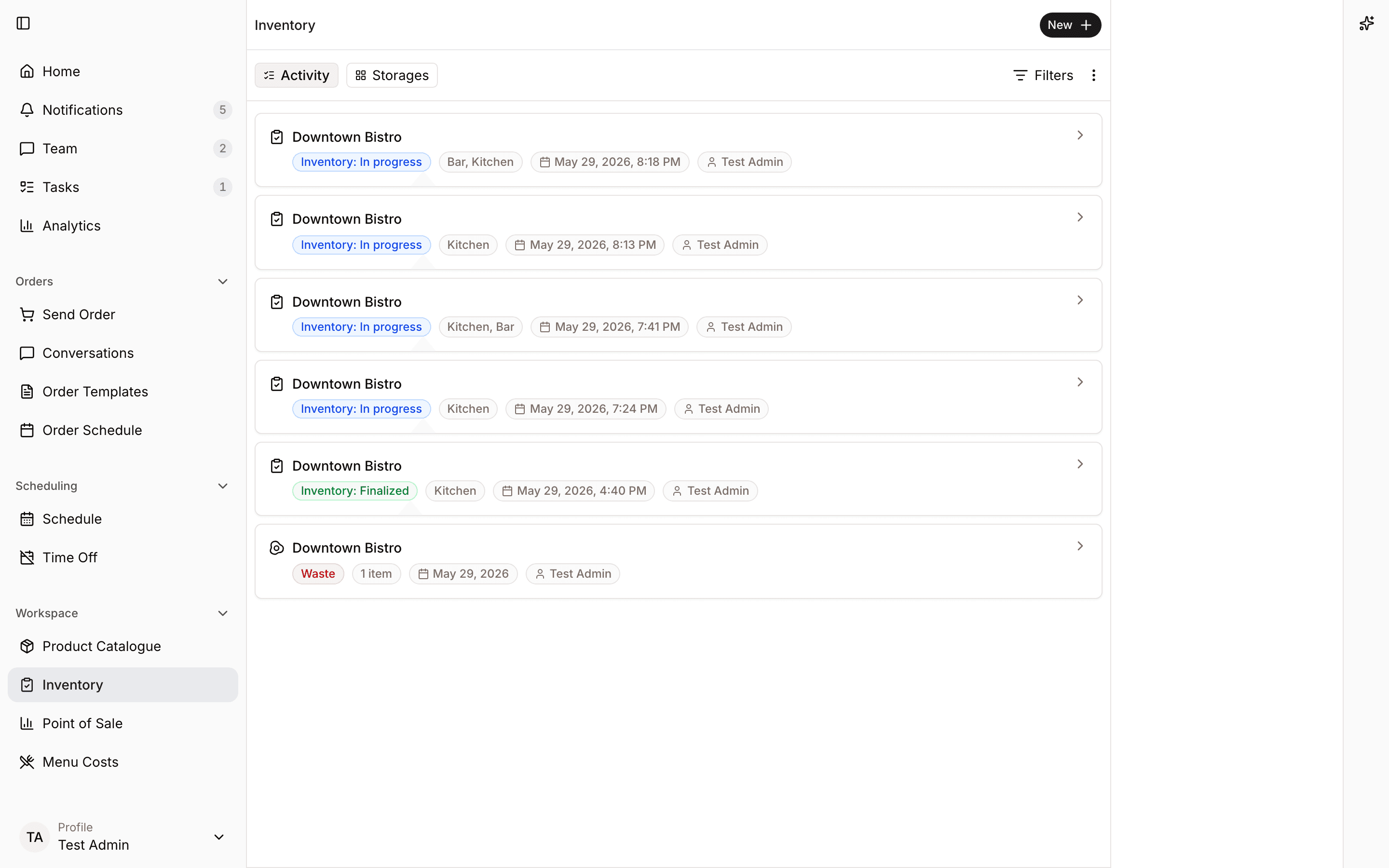
- Filter both lists by time (This month, Last 30 days, All time). On Stock in & out, you can also filter by type (All, Moves, Deliveries, Add stock, and Waste).
- Count entries show the location, the status, the storages included, the start date, and who counted. In progress means the count is still open and can be updated. Finalized means it is complete and its numbers are locked.
- Click a waste, move, or add stock entry to see its details: the items with a per-unit breakdown, the date, who recorded it, and the comment. From there you can delete the whole entry. The person who recorded it, or a manager, can delete it.
- Click a delivery entry to see the supplier, the delivery note number, and the delivered items. Click Open delivery note to correct it. Delivery entries cannot be deleted here.
- To delete several entries at once, click Edit, select them, and delete up to 100 in one go. Deleting cannot be undone, and a deleted count is gone for good.
If Inventory counts is still empty, Spensa helps you start. With no products yet, it points you to Upload invoice first, because your product catalogue is built from invoices. Once you have products, you can start your first count from right there with New Inventory and watch the short "See how it works" explainer.
Change a count’s date on the web
You need permission to count at the location. For a finalized count, you need permission to edit finalized counts, normally held by managers. This action requires an internet connection.
- Open Inventory > Inventory counts and click the count.
- Open More actions in the header and click Change count date.
- Choose the Date when the stock was counted. The date uses the location’s timezone and cannot be in the future or after the count was finalized.
- Click Save, then reload and open Change count date again to verify the saved date. The counts list, web product history, Analytics, and export filenames use the corrected count date.
The quantities, storage completion times, and finalization record stay the same. A finalized count stays finalized. If someone changes the count’s date while you edit, close the dialog, reload, and review the saved count before trying again. Canceling leaves the saved date unchanged.
Stock value, exports, and history
People who count never see prices. Prices and values appear only in exports, in Analytics, and on product pages.
Spensa values a finalized count by itself. For each product, it uses the latest known price: the price from your most recent finalized invoice (with line discounts applied) or the latest price entered by hand on the product, whichever is newer. Price times counted quantity gives the value. Products without any known price show as unpriced.
Export a finalized count
- Open a finalized count from Inventory counts.
- Open the menu in the header and choose Export as CSV or Export as Excel.
- Confirm. Spensa builds a file with every item in the count, including last known prices and total values.
The file has one row per product, with the amounts from all storages added up: supplier item code, product name, category, supplier, packaging, unit, price per package, counted quantity, and total value. Recipes are not included in the file. Only finalized counts can be exported.
Stock value in Analytics
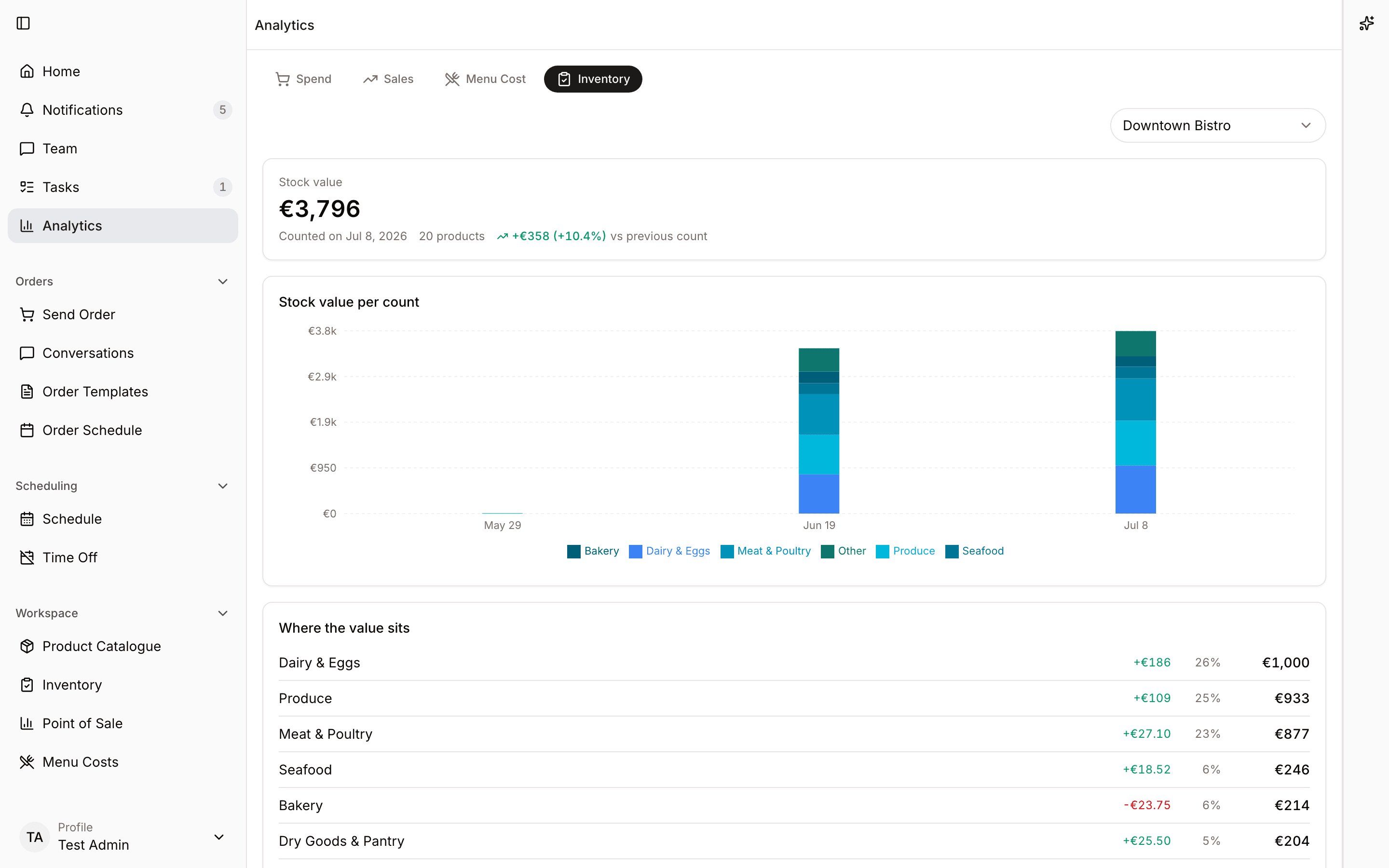
Stock value is calculated from the saved physical amount and a compatible price. Older counts whose units cannot be determined remain unvalued rather than being treated as zero.
The Analytics page has an Inventory tab. It shows the stock value of each finalized count for a location, up to the last 24 counts and usually the last 12, broken down by product category, with a ranking of the biggest categories in the latest count. Products without a price are pointed out. The chart always uses each product's latest price, so it shows how your stock amounts change over time, not old prices.
Inventory history on the product page
Every product page has an Inventory History card. It shows how much of that product was counted across your finalized counts, for the last 30 days, 90 days, a year, or all time.
Inventory on the phone
Open More > Inventory, or the Inventory bottom tab. Load your location and storages while online before counting offline. Your phone saves counting work locally and synchronizes it when connected. A local save is not yet confirmation that a manager or another device can see it.
The progress counter includes items counted on this phone, including custom products and recipes, even before they synchronize. Blank items remain uncounted; zero counts as completed. When the full checklist is unavailable, the app shows only how many items you have counted.
To keep more of the list and your search results on screen, items you have not counted yet show only their name and packaging:
- Tap an item. Its count fields open and the number pad starts in the first field.
- Type the amount, or use the plus and minus buttons. Next moves to the following field or item and opens it.
- To close an item without counting it, tap its name again or close the number pad. It folds back up and stays blank.
Once an item has a count, its fields stay open.
Record a count by voice
On iOS and Android, you need permission to count inventory at the selected location and an installed app version that supports voice recording. Open the count and its storage while online before taking it offline. Audio and transcripts stay on this phone, under your account; they are not uploaded or converted into inventory quantities.
- Open Inventory, open a count, and select an unfinished storage.
- Tap Start voice recording below the search bar. Recording starts automatically after you allow microphone access when prompted. If access was denied, use Open settings to enable it.
- Say the product, quantity, and unit. You can use German and English. Watch the microphone indicator and read the transcript as it appears. Recognition may lag behind your speech; the audio continues recording independently.
- Tap Pause to take a break, then Resume recording to continue. Drag the arrow in Slide to finish all the way to the right and release to finish. Releasing early returns the arrow without stopping the recording. With a screen reader, activate Finish recording directly. After pausing, tap Finish recording. Wait for Recording saved before leaving. Each recording can contain up to 30 minutes of audio.
- Tap Play recording to review the audio. Use Correct transcript, edit the text, and tap Save transcript. Your correction is kept separately from the original recognition. If recognition failed, use Retry transcription and keep Spensa open.
- After recording audio, tap the Voice recordings list icon beside Start voice recording to reopen recordings for this storage. Finished counts offer a Voice recordings button for review. Enter the verified quantities in the counting screen before completing the storage; a voice recording alone does not count any items.
Keep Spensa in the foreground. Leaving the recording screen, locking the phone, switching apps, or an audio interruption ends the recording. After an unexpected app closure, reopen Spensa to recover available audio and continue transcription. Recovery depends on what reached the phone's storage, so review the recording before relying on it. A finished storage or count allows review of existing recordings but no further recording.
To remove a recording, open it, tap Delete recording, and confirm Delete recording. This permanently deletes its audio and transcript from this phone. Signing out, clearing local app data, or uninstalling Spensa also removes recordings. Reconnecting does not back them up or share them with other devices.
Complete and synchronize a count
- Open New entry > Count, select the location and storage, and enter quantities. If someone already started the count, use Join that count when you are working together.
- Tap Complete storage after checking the list. Resolve the uncounted-item prompt; blank items are not counted as zero.
- Finish every storage included in the count, then review it. Managers decide which additions and removals update saved storages. If you select a storage under Save these storages for next time?, enter its name. Tap Save & finalize when saving storage changes, or Finalize count when there are none. Staff without finalization rights hand it to a manager.
- Reconnect and allow synchronization to finish. Check the count's saved status before treating it as finalized for the team.
- Open Sync issues if a change needs attention.
Delete a count on the phone
You need access to the location and permission to count or manage counts. The count must be open and not waiting for finalization. Download an existing count while connected before deleting it offline.
- Open Inventory, select the count, and select one of its active storages.
- Tap Storage options, then Delete this inventory. This removes the entire count, including every storage and its quantities. Deletion cannot be undone.
- Tap Delete to confirm, or Cancel to keep the count. Offline deletion removes the count from this phone and queues its removal from the shared inventory. It supersedes earlier unsynchronized changes to that count.
- Reconnect and let synchronization finish. Check that the count is gone from the shared inventory. If the count changed on another device, open Sync issues and review the pending deletion before treating it as complete.
Resolve competing edits on the web
You need access to the location and permission to count. Open Inventory, select an in-progress count, and select its storage. Web counting requires a connection.
- Enter quantities as usual. Changes to different items save without a review. If another person changes the same item before your edit saves, Resolve count differences opens.
- Compare the counts under Use mine and Use saved. Select Use mine, Use saved, or Combine counts. Combining adds both full counts and is intended for separately counted stock. Existing notes are preserved with the chosen version; they cannot be edited here. Combining is unavailable if the combined notes exceed the saved note limit.
- Adjust the Resulting count beside the two versions, by editing the quantities. Selecting another version immediately replaces the adjustment for that item.
- Use Previous item and Next item to move through the differences. For many items, select Use mine for all, Use saved for all, or Combine all, then confirm Apply to all. Review and adjust individual results afterward. Items that cannot be combined still need a separate choice.
- When every item is ready, click Confirm resolution, then Save counts. Check the updated quantities in the count editor. If a saved count changed again, review that difference before confirming again.
You can close the review and reopen it with Review count differences. Choices survive a reload in the same browser tab, but are not yet saved to the shared count. Resolve them before completing the storage or opening the activity overview.
If your connection drops while entering counts, keep the tab open and reconnect so pending changes can save. If you try to leave with unsaved counts, choose Stay here or cancel the browser's leave-page warning. Choosing to leave can lose unsaved edits; web counting does not keep an offline draft after the tab closes.
Resolve a sync issue
On mobile, you need access to the affected location and permission to count. Download the saved counts while connected; after that, choices and adjustments are saved on your phone even offline.
- Open the sync-issues notice in Inventory and find the affected count.
- Tap Review count differences. Changes to different items are merged automatically. Items with competing changes appear one at a time, with a progress bar.
- Compare the counts under Use mine and Use saved. Tap Use mine, Use saved, or Combine counts. Combining adds both full counts, so use it only for separately counted stock. For example, 7 and 8 become 15. Removed items, incompatible units, and notes that would exceed the saved note limit cannot be combined. Existing notes are preserved with the chosen version; they cannot be edited here.
- Adjust the Resulting count directly below your choice, by editing the quantities. Selecting another version immediately replaces your adjustment for that item. Tap Save & next to continue. Use Previous item and Next item to revisit items.
- For many items, open Apply to all and choose Use mine for all, Use saved for all, or Combine all. Confirm Apply to all to replace earlier choices and adjustments. You can still adjust individual items afterward. Items that cannot be combined need a separate choice.
- When every item is ready, tap Confirm resolution, then Confirm and save. This saves the resolution on your phone and queues synchronization. You can leave and return before confirming without losing saved choices.
- Reconnect and check that the issue clears. Until synchronization is confirmed, the review shows that your resolved counts are waiting to synchronize; reopening it does not undo your confirmed choices. If someone changes a conflicting count again, review the new differences. A count that was waiting to finalize remains queued for finalization after its changes synchronize.
Storage-detail differences, such as competing completion states, may also need a choice. For other sync issues:
- If packaging units changed while a new count was offline, synchronization may ask you to Review inventory. The count stays on your phone. Review and correct the affected items, then retry synchronization and check its saved status.
- If a saved count can no longer be expressed safely with the current product units, Spensa asks you to review those units before continuing. Ask someone who manages products to check the changed packaging, then return and try again. The saved count is kept while this is resolved.
- When packaging changes, a saved count may appear in an equivalent weight or volume during conflict resolution. Its physical amount stays the same. Check the displayed unit before adjusting the result.
- If another person finalized the count, Review count differences explains that it can no longer accept changes. A permitted manager can tap Reopen and review counts, read Reopen this inventory?, then tap Reopen to reopen the entire inventory. Tap Cancel to leave it finalized. Your local counts stay saved while you decide. Review the item differences after reopening, then check the count before finalizing it again. If you lack permission, ask a manager to reopen it and tap Try again afterward.
- Storage or other record changes may offer Keep current version or Keep my version. These apply to the displayed change.
- A name or record conflict may offer Link to existing storage, Link to existing record, or Rename my storage. Select the correct record or enter a new name before saving.
- If access was removed or the record was deleted, resolve the cause with a manager or use Discard saved change. Check that the issue clears after synchronization.
Pending inventory work does not use the old 24-hour automatic expiry rule. Resolve conflicts explicitly rather than assuming that retrying will overwrite the current version. Counts, stock changes, and orders have different recovery paths.
Managers can also edit storages and their sections on the phone. The phone shares counts as CSV; Excel export, stock-value analytics, and sheet import are on the web.
How this connects to other parts of Spensa
- Products - everything you count is a product from your catalogue. A product's packaging setup drives its counting units and its value.
- Invoices - your latest invoice prices give counted stock its value, and new companies build their catalogue by uploading invoices first.
- Orders - counting suggestions come from what you ordered in the last 30, 60, or 90 days.
- Order templates - counting suggestions can also come from the items on your order templates.
- Menu - recipes with a batch size can live in storages, be counted in batches, and be recorded as waste. Batch sizes are set on the recipe in Menu.
- Point of Sale - till sales never change your stock. Counting is how stock levels are set.
- Analytics and Home - the Inventory tab shows the stock value of your finalized counts.
- Notifications - managers get a notification when a count is finalized.
- Mobile app - counting and recording waste work on the phone, even without internet.
- Team and permissions - custom roles let you choose exactly who may count, manage storages, and finalize.
- The assistant - you can ask the assistant about your storages, counts, and waste.
Good to know
- You can have up to 64 storages per location. Each storage holds up to 1,000 items, products and recipes together.
- Storage names can be up to 64 characters, count names up to 256, and notes up to 512.
- You can add up to 50 items at a time to a storage or a count.
- A product can have up to 6 packaging layers, plus a compatible weight or volume counter, and up to 12 unit lines in one count.
- Quantities go from 0 to 1,000,000, with up to 4 decimal places.
- You can keep up to 5 unfinished storages open at once in one count.
- Counting saves in the background in groups of up to 200 items, and finalizing saves up to 2,000 items in one go.
- Waste, moves, and added stock are recorded in groups of up to 100 items on the web, and larger batches are split automatically. The phone sends queued entries in groups of 50.
- Sheet import takes up to 10 files at once, PDF or image, each up to 20 MB.
- You can delete up to 100 activity entries at once.
- The Analytics chart shows up to 24 finalized counts, 12 by default.
- Phone changes remain local until synchronized. Check pending changes and resolve any sync issues before relying on another device or signing out; see Resolve a sync issue.
- Blank and zero are different. Blank means the item was not counted. Zero means you counted and found none.
- When a storage joins a count, Spensa keeps a copy of its list as it is at that moment. Changes a manager makes to the storage meanwhile do not shift your count. When you reopen the storage or the count, the list refreshes and keeps what you counted.
- Spensa gently steers you toward one open count per location at a time, but you can always start another.
- You can edit your own counting. Changing what someone else counted needs a manager.
- Deleting a storage never touches past counts. They keep their names and numbers.
- Finalizing does not freeze prices. Values are always calculated from each product's latest known price, so reopening a count changes quantities, never price history.