Assistant
On this page
The assistant is a chat built into Spensa. You ask in plain words and it answers with real numbers from your own records. You can also give it work to do. It can draft an order, record waste or fix an invoice line. Give it clear requests and check the records it links after making changes.
Ask how to use Spensa
On web or mobile, open Assistant and ask a product question, such as "How do I finalize an inventory count on my phone?" Include the platform if you are asking about a different device.
The assistant searches the published product guides and explains the relevant steps, with links to the documentation. Open a linked guide to read the full workflow and its access requirements. It answers in your language; documentation uses English interface labels.
If the guides do not cover your question, or documentation search is temporarily unavailable, the assistant explains what it cannot verify. A missing answer does not necessarily mean the feature is unavailable. Documentation describes how the product works; checking your company's records or performing an action is a separate request.
What this is for
- Ask questions about your spending, orders, prices, suppliers and more
- Let the assistant create and change things for you
- Have it send orders to suppliers after you approve
- Send it files such as invoices, till reports, menus, spreadsheets and photos
- Keep several chats and switch between them
- See charts and clickable cards in its answers
- Use it on the web and in the phone app
Where to open it
You can open the assistant in four places.
The side panel (web). On any page, press Cmd+/ on a Mac or Ctrl+/ on Windows. You can also click the sparkles icon at the top right. The assistant opens in a panel on the right side of the screen. On small screens it opens over the whole page instead.
The full page (web). The assistant also has its own full page with more room. Chats you open from search open there. Click Collapse to sidebar to shrink it back into the side panel.
The Home page box. The top of your Home page has an Assistant box. It says "Ask Spensa about your spending, orders, suppliers..." and shows example questions. Type there to start a chat.
The phone app. Tap More > Assistant, or its bottom tab if you have added it there.
Access and permissions
Every company member can chat with the assistant. Location staff do not have it; their managers use it on their behalf. One important rule applies to everyone. The assistant only sees what you are allowed to see. It can only change what you are allowed to change. If invoices are hidden from you in the app, the assistant will not show them to you either. If your role is view-only, the assistant still answers questions. It just tells you it cannot make changes for you.
Some app features are not available through the assistant, even when you have permission to use them yourself. For example, the assistant cannot currently read timesheets, clock you in or out, or correct time entries. Use Time tracking in the app for those actions.
Your first chat
A new chat greets you with "What can I whip up for you?" and a few questions to try:
- "Summarize last week's spending"
- "Compare a product price across suppliers"
- "Draft my next order"
- "What am I low on?"
- "Where can I save money?"
Tap one or type your own question. On the phone, the rounded field grows as you type. Return adds a line; tap the round Send message arrow to send. See Writing messages on the phone for keyboard and attachment controls. Write the way you speak. The assistant answers in your language. If the examples disappear, the chat box has a button to show them again.
If your company is new to Spensa, setup starts with a guided welcome chat. It walks you through your first steps. The checklist on your Home page links back to it at any time. See Getting started.
What it can answer
The assistant can look through these records in Spensa, within your permissions:
- Orders, order templates and your order schedule
- Invoices, including every line and discount
- Products, prices and packaging
- Suppliers, including your customer numbers
- Inventory: storages, counts and recorded waste or losses
- Recipes, menu items and menu costs
- Till reports and sales (called Point of Sale in the app)
- Work schedules: shifts and time off
- Tasks, checklists and their results, for example "Which checklists are still open today?" or "What was the cold room temperature this morning?"
- Your locations and your team
Ask things like "How much did we spend at Metro in June?" or "Which supplier has the best price for butter?". The assistant works with your real records. For long lists it tells you when there is more than it has shown.
What it can do for you
Tell the assistant what you need in one sentence. A few examples:
- "Order the usual from Metro for Friday."
- "Add 5 kg of flour to my draft order."
- "Record 2 kg of chicken breast as waste."
- "Create a task for Saturday: clean the cold room."
- "Fill in today's cold room check: 4 °C, door closed."
- "Approve this week's Metro invoices."
- "Add 200 g of onions to the goulash recipe."
It can help across all of Spensa:
- Orders: create an order, start one from a template, change or copy an order before it is sent, mark it complete, and send it to the supplier by email. To change or cancel an order that was already sent, use the order itself; see Changing or cancelling a sent order.
- Order templates: create, change and publish templates. It can even build a template from files you send it.
- Order schedule: set up your recurring ordering days.
- Suppliers: create suppliers and update their details, including customer numbers.
- Products: create products (several at once), edit them, and merge a duplicate into the product you keep.
- Locations: create a new location or update one.
- Employees and teams: create employees, assign location access, archive and restore employees, permanently delete unused staff accounts, create teams and add people to one or more teams. Employee setup and team management each require the corresponding company-level access.
- Opening hours: change a location's recurring opening and closing times or weekly rest days, if you have company-level schedule-management access. Other weekdays stay unchanged. The new closing time also applies to shifts marked Close of business.
- Invoices: save files you send as invoices, fix invoice lines and approve invoices. See Approve invoices with the assistant.
- Till reports: save uploaded reports, correct report lines, approve reports and tidy up your till catalogue and categories.
- Inventory: create or rename storages, add items to them, set how often to count and record waste or losses.
- Live inventory: set up the drinks of a location for live inventory: link till items to menu items, write drink recipes from what you buy and count, and undo those changes. This needs permission to manage POS items and the menu. See See live inventory for drinks.
- Recipes and menu costs: create and update recipes and their ingredients, also from a menu or recipe file you send. Manage your menu categories. See Create items from a menu or recipe file.
- Tasks: create, update, complete and delete tasks, and attach files. When a task needs a completion comment, the assistant asks you for it; when it needs a photo, send the photo in the chat.
- Checklists: create and change checklists with their items and rules, assign them to locations on a schedule, pause or remove assignments, fill in a checklist from what you tell it, and complete or reopen it. It only enters values you give it.
- Feedback: pass your feedback or a bug report along to the Spensa team.
Everything the assistant does follows your own access. If you cannot delete tasks in the app, the assistant cannot either, and it never shows you private or managers-only tasks you cannot see in the app.
Before the assistant acts
The assistant carries out clear requests right away, within your own access, and links the records it changed so you can check them. When it is unclear which record you mean, it asks first. Approving invoices always needs your confirmation in the chat because it cannot be undone.
If you ask it to find menu prices on the web and save them, it checks that the source matches the restaurant, location and type of service. If it only finds old, conflicting or undated third-party prices, it explains the limitation before saving. You can choose to use those prices or provide a suitable menu instead.
Set up employees and teams
On web or mobile, company members with permission to manage employees and teams can complete setup in the chat.
- Open the assistant and name the location, employees and teams, for example: "At Downtown Bistro, create Max and Justin as staff. Add Max to Service and Justin to both Service and Kitchen. Create either team if it is missing."
- The assistant checks existing records, creates the missing employees and requested teams, and adds the memberships. Existing team memberships stay in place. New teams appear on the schedule with team chat off.
- Check the result in Settings > Users > Employee and Settings > Teams on web, or More > Teams on mobile. If only part succeeded, the assistant identifies which employee or assignment still needs attention.
Team assignment does not grant a location role or a scheduling position. Employees need access to the team's location first. Login credentials are managed in staff settings, never in the conversation.
If someone you ask for matches a former employee, the assistant asks whether to restore that person or create a new employee. You can also ask it to archive an employee, restore a former one, or delete a test account or duplicate completely. It only deletes staff members without work history; everyone else stays archived. See Delete a former staff member permanently.
Merge duplicates with different packaging
You need permission to manage products. This works in the assistant on web and mobile.
- Ask the assistant to merge the duplicates, naming the supplier and products.
- When it is obvious which units are the same, the assistant merges right away. Otherwise it checks the products' packaging, contents and invoice prices and tells you which product stays and what one unit of the other becomes, such as one piece becoming one 0.75 L bottle. If the evidence is incomplete, it asks for the missing information.
- Review the proposal and confirm in the chat. The merge cannot be undone. The assistant then merges, converting the invoices, orders, recipes and stock of the removed product to the units of the product that stays, and checks the result. A general request to tidy duplicates does not confirm a new unit match.
- Open the remaining product and check its history. Its packaging stays as it was.
Approve invoices with the assistant
You need permission to manage invoices. This works on web and mobile.
- Ask the assistant, for example "Approve invoice 1042" or "Approve all draft Metro invoices from this week."
- The assistant checks the invoices and shows a summary: which invoices are ready, which still need a supplier, location or date, lines whose price changed by more than 89.9% since the last invoice, and how many lines will become new products.
- If some lines are incomplete, for example missing a price or a quantity, the assistant lists them and suggests how to fix each one. Choose whether to fix them first or remove them. To fix them, tell the assistant the correct values or correct them in the invoice yourself. Removed lines are left out of the approved invoice. The assistant never fixes or removes lines without your choice.
- If an invoice might be a duplicate, the assistant warns you and names the matching invoices. This happens when another invoice from the same supplier has the same invoice number, when the same file was uploaded before, or when documents from the same email could not be compared. Choose to approve anyway, leave those invoices out, or delete the duplicate in Spensa first.
- When the assistant asks whether to approve, reply in the chat, for example "Yes, approve them." Answer each of its questions in your own words; nothing is approved until you do.
- The assistant starts approving and links the invoices. Approval runs in the background. Open an invoice and wait until it shows as approved before treating it as finished.
An approved invoice cannot be turned back into a draft. You can still edit or delete it. The assistant approves the saved version of an invoice, so save any changes you are making in the invoice editor first.
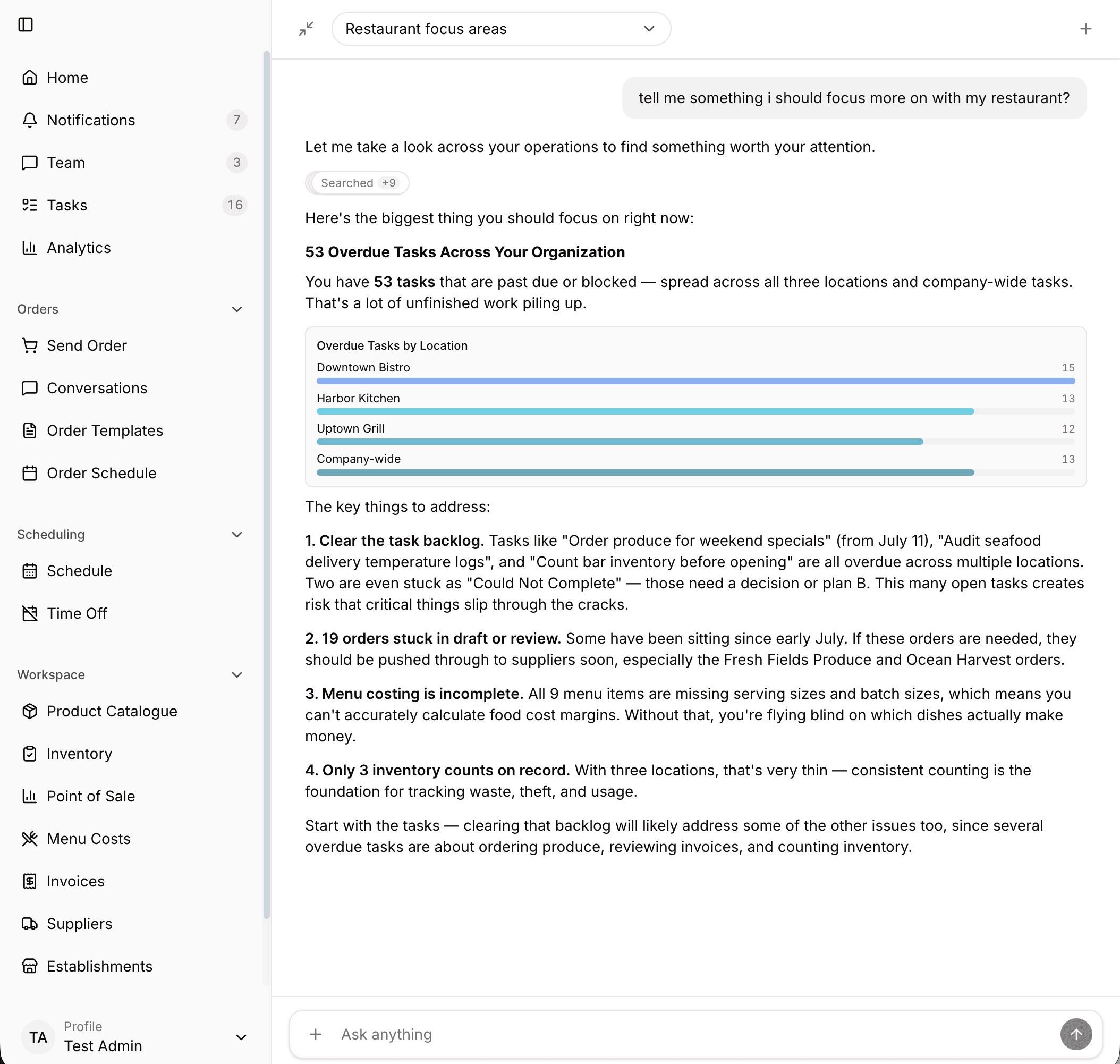
What answers look like
- Cards you can click. When the answer is about a record, you get a small card with its name and status. Click it to open the real page.
- Charts. For questions about numbers you may get a bar, pie or line chart.
- Choice buttons. When the assistant needs to know which location or supplier you mean, it shows a short list to pick from.
- Quick answers. For simple questions it offers answer buttons. You can always type your own answer instead.
- A summary of what it created. After the assistant creates something, a card lists everything new with a link to each record.
While the assistant works you see "Thinking..." and a short trail of what it does, such as "Created order" or "Recorded waste".
Downloading generated files
In web chat, ask explicitly for a file or export, for example: "Export these products as an Excel file." The assistant can create Excel (.xlsx), CSV and plain text (.txt) files. Each file appears in the conversation with a Download button and remains available when you reopen the conversation.
Each file can contain up to 10,000 rows and 50 columns, with a 2 MB size limit. Larger exports can be split into multiple files. Creating a file does not create or change records in Spensa unless you also ask for that action.
Sending it files
You can send files with any message. Invoices, till reports, menus, spreadsheets and photos all work.
- Attach files in the chat box, or drag them into the chat.
- Add up to 10 files per message. Each can be up to 50 MB.
- Tell the assistant what to do with them, or just send them.
On the web, empty files are skipped with a message naming the file. Other valid files in the same selection still upload. Choose a copy with content to attach the skipped file.
If it is not clear what you want, the assistant asks. It can save files as invoices, save them as till reports, build an order template from them, attach them to a task or create records from what is inside. It reads the contents for you. For example, send a few invoices and say "create this supplier".
On the phone you can snap a photo of a paper invoice and send it straight to the assistant. Photos appear right in the chat. Uploads show their progress, and a failed upload can be retried. Bigger jobs continue in the background. The results land on the matching pages, for example new invoices on the Invoices page.
Chats and history
Your chats are private to you. Teammates do not see them.
- Start a new chat: click the + button at the top of the assistant. Your old chat stays saved.
- Switch chats: on the full page, open the chat list at the top and pick one. Chats are sorted by their latest message. A chat without a title yet shows as "New chat".
- Delete one chat: open the chat list and choose Delete session.
- Delete all chats: open the chat list and choose Clear all sessions.
- On the phone: tap the clock icon for your chat history. Tap + for a new chat.
If you close the page while the assistant is still answering, the answer keeps going. It is waiting for you when you come back. You can also find old chats by title through search. See Analytics and the Home page for how search works.
It knows where you are
The assistant knows which page you are looking at when you send a message. On a product page you can simply ask "what did the price do this year?". It also knows today's date and your role. When you chat from a location, it can use that location without you naming it. It starts each chat with a rough picture of your business, such as how many suppliers and products you have.
If something goes wrong
- If an answer fails you see "Something went wrong." with a Try again button. If it keeps happening, contact support.
- You can stop the assistant while it is writing, then rephrase and try again.
- Under each answer you can rate it with Good response or Bad response. This helps make the assistant better.
- On the phone without internet you see "You're offline. Messages can't be sent until you reconnect." Sending works again once you are back online.
Your monthly allowance
Every plan includes a monthly allowance for assistant work and automatic document reading. Most companies never notice it.
- You can see your usage in Settings > Billing & Usage, under Monthly Usage.
- At 75% a heads-up notice appears on the billing page.
- At 100% the assistant pauses. Chat and automatic document reading resume at the start of the next month, or right away after a plan upgrade.
When the allowance is used up, the chat box shows an upgrade note instead. Your saved chats and everything the assistant already created stay untouched. See Settings and billing.
How this connects to other parts of Spensa
- Orders - the assistant creates, changes and sends orders that appear in your normal order list.
- Order templates - it builds and edits templates, including from files you send.
- Order schedule - it sets up recurring ordering days for you.
- Suppliers - it creates and updates suppliers.
- Products - it creates, edits, and merges products in your catalogue.
- Invoices - files you send can become invoices, and it can fix invoice lines.
- Point of Sale - it uploads and corrects till reports, and can approve them.
- Inventory - it manages storages and records waste and losses.
- Recipes and Menu - it creates and updates recipes and their ingredients.
- Tasks - it creates and manages tasks and checklists.
- Scheduling - it answers questions about schedules, shifts and time off.
- Getting started - new companies get a guided welcome chat.
- Mobile app - the phone app has its own Assistant tab.
Good to know
- You can send up to 10 files per message. Each file can be up to 50 MB.
- Supported files include PDFs, photos and images, spreadsheets (Excel and CSV), plain text files and emails saved as files.
- Files attached to tasks can be photos (JPEG, PNG, WebP) or PDFs.
- The assistant answers in whatever language you write.
- For general kitchen questions it can look things up on the web, for example a classic recipe. It never uses the web for your own business numbers.
- The assistant will not claim a list is complete unless it truly checked everything.
- Chats belong to one company. If you work in more than one company in Spensa, each has its own chats.
- On the phone, a small button helps you jump back to the newest part of a long answer.
- The app sometimes says "establishment" where this guide says "location".