Order schedule
On this page
The order schedule gives your ordering a weekly rhythm. You set up when each supplier order is due, for example "vegetables every Tuesday by 16:00, delivered Thursday". Spensa then shows today's orders on the Home page, reminds the right people, and starts each order pre-filled, so nothing is forgotten.
What this is for
- Plan weekly ordering slots: which supplier, for which location, on which day, by what time.
- Attach a published order template, so the order starts pre-filled.
- See the whole week as a calendar, or as a list grouped by supplier.
- See today's due orders on the Home page, on the web and on the phone.
- Start an order straight from a slot, with location, supplier, and delivery date already set.
- Remind chosen people before the order deadline.
- Mark a slot as handled when the order was placed another way.
Where to open it
On the web app, open Order Schedule in the left sidebar. The app may say "establishment" in some places; that means a location.
Today's slots appear on Home on the web and in Orders on the phone. On mobile, Orders > Order Schedule opens the schedule; people with the required ordering permissions can also manage it while online.
Access and permissions
Everyone in your organization can see the schedule and today's slots. Creating, editing, and deleting slots needs permission to create orders. All company members except viewers have this by default. Marking a slot as handled needs no special permission.
How the schedule works
The schedule is made of slots. A slot is one weekly recurring order and holds:
- A location and a supplier. These are fixed once the slot exists.
- Responsibility: the people responsible for placing the order, separate from reminder recipients.
- An optional published order template. Draft templates cannot be chosen.
- The order day and the time the order must be placed by.
- The delivery day.
- An optional reminder: a time and the people to remind.
Slots repeat every week on the same day. There are no one-off or monthly slots.
All times use the location's local time.
Create a slot
- Open Order Schedule.
- Click New schedule. In the calendar view you can also click the plus on a weekday to start with that day.
- Choose the location and the supplier. If you change either one, a chosen template is cleared, because templates belong to one location and supplier.
- Optionally pick an Order template. Only published templates for this location and supplier appear. You can also choose No template.
- Choose the day under Order On and the deadline under Order by. The time starts at 16:00.
- Choose the day under Delivery On. Spensa suggests two days after the order day until you change it.
- Under Responsibility, select the people responsible for this order. Add a reminder if needed, then click Create Schedule. When editing, click Save Changes.
The slot now appears in the calendar and, on its weekday, on the Home page.
Add a reminder
While creating or editing a slot:
- Click Add reminder.
- Set the Alert Time. It must be before the order deadline on the same day.
- Under Notify, pick the people to remind. You can pick up to 20 company members.
To remove the reminder later, open the slot and click Remove reminder.
The location's timezone
The form shows which timezone the times use, with a link to change it. The timezone belongs to the location, so changing it affects every schedule slot of that location. Review your slots after changing it.
Calendar and list views
Use the Display menu to switch views.
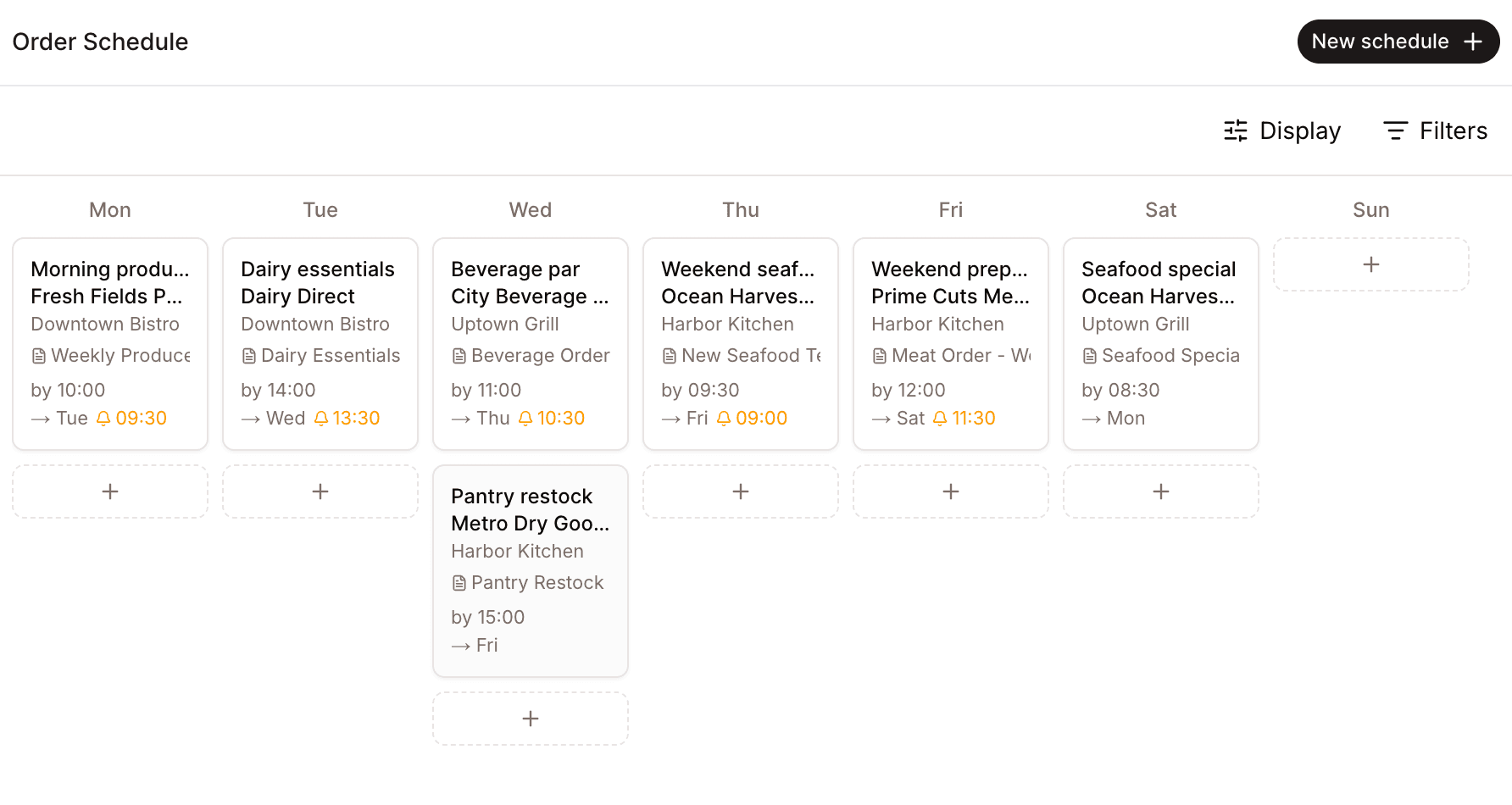
- Calendar (the default) shows the week from Monday to Sunday. Cards summarize the supplier, location, template, responsibility, and delivery day. Open a slot to check its deadline and reminder settings; the web calendar does not display every configured time on its cards.
- List groups slots by supplier, then by location. Long groups show the first three slots and a "+3 more" line you can expand.
You can filter by location and supplier in both views, and by weekday in the list view. Active filters appear as chips, with Clear all filters to reset. Clicking any slot opens it for editing.
Today's order schedule on the Home page
On the day a slot is due, it appears on the Home page.
- On the web, open the Today's order schedule section on Home. It appears once you have created slots. A Manage Schedule link takes you to the full schedule.
- On the phone, open Orders for the scheduled-order overview, or Orders > Order Schedule for the schedule view.
Each slot shows one of three statuses:
- Pending - the order has not been placed yet.
- Sent - one or more orders are linked to this scheduled occurrence and have been sent.
- Marked as done - someone marked the scheduled order as done for this occurrence. Everyone sees the same status, and reminders stop.
Above the slots, Spensa shows how many of today's scheduled orders are handled, for example 3 of 5 done. Sent and marked-as-done slots count as handled. When every slot is handled, it shows All done for today. If you filter by Responsibilities, the progress counts only the slots for the selected responsibilities, so you can see when your own part of today's ordering is finished.
The Home page also shows deliveries arriving today, based on the delivery dates of your orders.
On the phone, the Expected tab in Orders lists these deliveries. To narrow the list:
- Tap Expected, then tap Filters.
- Tap Establishments or Suppliers to open that list.
- Type in the search field to find a location or supplier by name, then tap the ones you want to see. Selecting several shows deliveries for any of them. Clear Selection removes the choices in this list.
- Tap the back arrow to choose from the other list, or tap Done. The Filters button shows how many filters are active, and each list in Filters shows what is selected. To show everything again, open Filters and tap Clear all filters.
Start the order from a slot
Click or tap a pending slot. Spensa starts a new order with the location, the supplier, and the delivery date already filled in. The delivery date is the next occurrence of the slot's delivery day.
The template is chosen like this:
- If the slot has a template, that template is used.
- If not, and exactly one published template exists for this location and supplier, Spensa uses it automatically.
- If several templates match, a picker opens. Choose one, or start without a template. The slot's own template, if set, is marked with a star.
From there it is a normal order: enter quantities and send it. The order stays linked to this occurrence, so only this slot shows Sent. The link also stays when you remove the order's supplier or switch items to cheaper suppliers. When such an order is split on sending, the slot supplier's part keeps the link, and the slot counts as sent even if every item went to other suppliers.
Orders started elsewhere in Spensa also appear on today's matching schedule cards. If an order's location, supplier, and delivery date identify exactly one scheduled occurrence, Spensa links it automatically. Draft and review orders remain active; sent orders mark the occurrence as sent.
If duplicate scheduled occurrences have the same supplier and delivery date, Spensa leaves the order unlinked instead of choosing one arbitrarily.
More than one order can fulfill the same occurrence. Spensa associates orders automatically when there is one clear match. See Orders.
Mark a scheduled order as done
If no order is needed this week, mark the slot as done so it stops reminding the team.
- Click or tap the done action on the slot.
- Confirm Mark as done.
The slot shows as marked as done for everyone and no more reminders go out for this occurrence. Next week, it appears as pending again. Made a mistake? Open the three-dot menu and choose Mark as not done. If the reminder time has not passed yet, reminders may then still go out.
Reminders
When a slot has a reminder, the chosen people are reminded on the order day at the alert time. Each person gets a message inside Spensa and a push message on their phone, saying which supplier order is due and by when.
Reminders stop by themselves when they are no longer needed:
- when a sent order is linked to this scheduled occurrence, or
- when someone marked the occurrence as done.
Each person gets at most one reminder per slot per day.
Open an order reminder on the web
You need access to the reminder's location. Starting a new order also requires permission to create orders.
- Open Notifications and click the Order Reminder for the supplier.
- Check Scheduled for and the supplier and location. The page shows the occurrence the reminder was sent for, including older dates.
- If an order is already linked, click its order number to open it and check its status. Marked as done means this occurrence was handled without placing an order.
- For a current, unstarted occurrence, click Start order, enter quantities, then finalize and send the order. Check the send confirmation and the linked order's status. A deadline that has passed today is shown as Overdue.
- An older unstarted occurrence is shown as Expired. Click View current schedule to start an order from the current schedule instead. You can still open orders linked to an older occurrence.
If the schedule was removed or is no longer accessible, the reminder page explains that it is unavailable. View current schedule returns to the schedules you can access.
Edit or delete a slot
- Click the slot in the calendar or list.
- Change what you need and save. The location and supplier stay fixed; to move a slot to another location or supplier, delete it and create a new one.
- To remove the slot, click Delete schedule and confirm.
Deleting a slot does not touch orders that were already created from it.
Manage the schedule on the phone
You need ordering permissions and an internet connection for editing.
- Open Orders > Order Schedule.
- Tap the Edit schedule control.
- Tap Create schedule, or select an existing slot to edit it.
- Check the location, supplier, template, responsibility, order day, delivery day, and any reminder fields shown in the form.
- Save and return to the schedule. Confirm the slot appears on the intended weekday before starting an order from it.
Saved schedule data can be used offline after synchronization, but new schedule-management changes require a connection.
How this connects to other parts of Spensa
- Orders - a slot starts a pre-filled order, and other likely orders can be linked explicitly when they are sent.
- Order Templates - slots can point to a published template, so the weekly order starts with the full item list.
- Suppliers - every slot belongs to one supplier, and the supplier needs an email address before orders can be sent.
- Notifications - reminders arrive as messages in Spensa and as push messages on the phone.
- Analytics and Home - today's slots and today's deliveries live on the Home page.
- Mobile app - the phone keeps ordering schedule data for offline use after synchronization. Managing the schedule needs internet.
- Settings and billing - your plan sets how many slots you can have.
Good to know
- On the Free plan you can have 5 slots in total, on the Basic plan 50, and on the Business plan there is no limit. There is also a limit on slots for the same location, supplier, and weekday: 3 on Free, 10 on Basic, 20 on Business. When you reach a limit, you will see an upgrade note.
- A reminder can go to up to 20 people, and the reminder time must be before the order deadline.
- If you unpublish a slot's template, the slot keeps working, but without the template until you publish it again.
- If you delete a slot's template, the slot keeps working without a template.
- Archiving a supplier hides its schedule slots and pauses their reminders. Restoring the supplier brings them back. See Suppliers.
- The schedule is weekly only. For a one-off order, just create a normal order.
- Times are shown in each location's own timezone, so locations in different timezones each get the right deadlines.