Order conversations
On this page
When Spensa sends an order, the supplier can simply hit reply. That reply does not get lost in someone's mailbox: it lands in Spensa, right next to the order it belongs to. Order Conversations is where you read these replies and answer them, so the whole back-and-forth about an order stays in one place for the whole team.
What this is for
- Read every email exchanged with a supplier about an order.
- Reply to the supplier, or reply to everyone copied on their email.
- Search conversations and filter them by supplier and location.
- See at a glance which conversations have unread messages, and mark all as read.
- Jump from a conversation straight to its order.
- Get notified when a supplier replies.
- Optionally receive a copy of every reply in your location's own mailbox.
Where to open it
On the web, open Order Conversations in the left sidebar. The page exists in the organization view, covering all locations, and in each location view. The app sometimes calls a location an "establishment". The conversation also appears directly on the order's page once the order is sent.
On the phone app, open Orders > Supplier Messages. The unread badge shows when messages need attention. Each order also has its own inbox card on its detail screen. The Inbox needs an internet connection; offline, the app asks you to connect.
Access and permissions
Everyone who can see an order can read its conversation. Staff members see the conversations of their own location.
Replying follows the same rules as sending the order itself: admins and managers can always reply. Company members and staff members who send template orders can reply on those orders; if the template has reviewers, only the reviewers may reply. Everyone else sees "This order conversation is read-only." You can adjust this with custom roles. See Team and permissions.
How supplier replies arrive
Every order email invites the supplier to reply directly. Their answer goes to Spensa's order address, orders@orders.spensa.ai, and Spensa files it under the right order automatically. A conversation starts the moment an order is sent, with the order email as its first message. Drafts have no conversation yet.
Only replies that belong to one of your sent orders appear. Out-of-office messages and other machine-written answers are kept but clearly labeled "Automatic email" with an "Automatic" badge, and they do not trigger any notifications.
Reading a conversation on the web
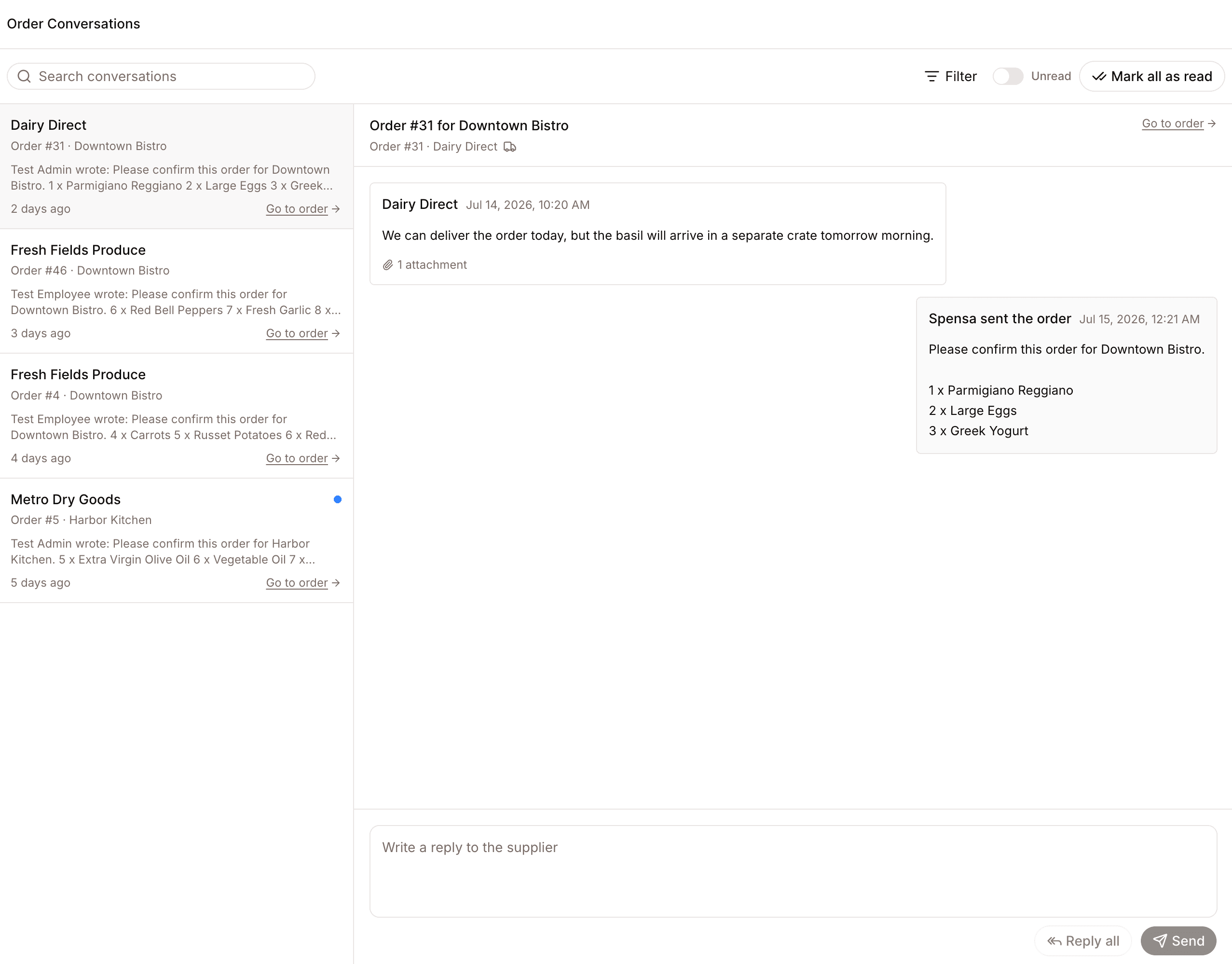
The page has two panes: the list of conversations on the left, the open thread on the right. Until you pick one, the right side says "Select a conversation".
Each row in the list shows the supplier, the order number and location, who wrote last with a short preview, and how long ago. A blue dot marks unread conversations. A "Go to order" link jumps to the order itself.
Inside the thread, every message is labeled so you always know who is talking:
- The first message is labeled "Spensa sent the order".
- Your team's follow-ups show the sender's name.
- Answers sent from your location's mailbox show "{name} replied by email". See Forwarding replies to your location's mailbox.
- Supplier replies show the supplier's name and email address.
- Automatic replies carry the "Automatic" badge.
Attachments appear with their file names, for example "2 attachments". Long quoted history is tucked away behind "Show quoted email" so threads stay readable. Opening a conversation marks it as read for you; your colleagues keep their own read status.
Finding conversations
- Use "Search conversations" to search by subject, supplier, location, or order number.
- Use the filter to narrow by supplier or location; you can pick several of each.
- Flip the "Unread" switch to see only conversations with unread messages.
- Click Mark all as read to clear everything at once. You see "Messages marked as read", or "No unread messages" if there was nothing to clear.
Replying to the supplier
- Open Order Conversations in the web sidebar and click the supplier thread for the correct order.
- Write your message in the field "Write a reply to the supplier". A reply can be up to 5,000 characters.
- Click Send to reply to the supplier's order address. Click Reply all to also send it to everyone who was copied on the supplier's latest email.
Your reply appears in the thread under your name, and the supplier receives it as a normal email in the same thread they already know.
The Inbox on the phone app
The phone Inbox mirrors the web page. See also Mobile app.
- The list shows the same cards: supplier, order number and location, sender with a preview, time, and a blue unread dot. You can search, filter by supplier and location, show only unread, and use Mark all read. Before the first reply arrives it reads "No messages yet - Supplier replies to sent orders will appear here."
- A thread shows your messages on the right and the supplier's on the left, with sender, time, and attachment names. The header links to the order. Opening a thread marks it as read.
- The rounded reply field expands as you type; Return adds a line. Tap the round Send arrow beside the field, or Reply all above it. Review the recipients, then confirm Send. Use Add files beside the field for attachments. Offline, the app says "Reconnect to send a reply." See Writing messages on the phone for keyboard behavior.
- Unread messages also show up as blue dots on the order cards in the Orders tab.
Who gets notified about replies
When a supplier replies, Spensa notifies the people involved with that order: whoever created it, whoever approved and sent it, and everyone who has written in the conversation. They get an in-app notification and a push notification on the phone, "Supplier reply received". Tapping it opens the conversation. See Notifications.
The conversation is also marked unread for everyone until each person opens it.
Forwarding replies to your location's mailbox
If you prefer to also see supplier replies in your own email program, turn on forwarding in the location's settings. See Settings and billing.
With forwarding on, every supplier reply is also sent to the location's email address, with the subject "Supplier reply for order #{number}". The forwarded copy itself does not show up as an extra message in the thread.
You can answer that email directly from your mailbox. Spensa sends your answer on to the supplier in the same email thread they already know, and it appears in the conversation as "{name} replied by email", so the thread stays complete for everyone.
Spensa only sends answers on to the supplier when they come from the location's email address and Spensa can confirm that this address really sent them. If Spensa cannot send your answer, for example because you replied from a different email address, you get an email back explaining that the message was not sent, together with a link to the order. Open the order in Spensa and send your message from the conversation there. Automatic replies such as out-of-office messages are never sent on to the supplier.
How this connects to other parts of Spensa
- Orders - every conversation belongs to a sent order, and the thread also shows on the order's page.
- Suppliers - the supplier's order email address is where your replies go, and the order email language is set there.
- Notifications - supplier replies reach the right people in the app and by push.
- Settings and billing - the forwarding option lives in the location settings.
- Mobile app - the Inbox brings conversations to the phone, including unread dots on order cards.
Good to know
- Replies can be up to 5,000 characters.
- Mark all as read handles up to 500 conversations in one go.
- The unread counter shows up to 99.
- Read status is personal: opening a conversation marks it read for you, not for your colleagues.
- Conversations exist only for sent orders. There is nothing to read on a draft.
- Automatic replies, like out-of-office messages, are labeled as such and never trigger notifications.
- Attachments in a thread are listed by file name.
- Changing or cancelling a sent order through ⋯ on the order emails the supplier in this conversation, and the message shows the changed items. Marking an order as arrived or undoing a cancellation never emails the supplier. See Changing or cancelling a sent order.