Getting started
On this page
Spensa helps restaurant teams run supplier ordering, invoices, products, menu costs, inventory, tasks, and analytics from one workspace. This guide gets a new company from account setup to the first useful workflow without making you read every feature page first.
Start here
Use this guide when you are setting up Spensa for the first time.
- Create your account and confirm your email.
- Create your company and first location.
- Choose whether you want to start with ordering or cost calculation.
- Add the first suppliers and products.
- Follow the setup checklist on Home.
- Invite company members or create staff accounts when the first workflow is ready.
If you already joined an existing company, you can skip company setup and go straight to Account and profile, Team and permissions, or the feature guide your manager asked you to use.
Create your account
Open the Spensa sign-up page and create an account with your work email. You need to accept the terms and privacy policy, then confirm your email from the verification message Spensa sends you.
After confirming, sign in with your email and password. If you were invited by a colleague, use the same email address that received the invitation so Spensa can connect you to the right company.
Staff members may sign in with a username instead of an email address. Their manager creates that account for them from the Users page. See Team and permissions.
Set up your company
The first time you sign in without a company, Spensa opens the setup flow.
- Click Get started.
- Enter Restaurant name, then click Continue.
- Enter Your name, then click Continue.
- Wait for your company workspace to open, then choose your starting workflow on Home.
Spensa creates the company and the first location for you. In some places the app may call a company an "organization" and a location an "establishment". They mean the same things in these guides.
Choose your first workflow
Spensa asks what you want to start with. Pick the path that matches the problem you want to solve first. You can use both later.
Start with ordering
Choose this if your first goal is to place better supplier orders and keep order history in one place.
- Add your main suppliers.
- Add products for those suppliers.
- Build an order template for a repeated supplier order.
- Create and send the first order.
- Use order conversations to keep supplier replies attached to the order.
Useful next guides:
- Suppliers - save supplier contact details and order rules.
- Products - build the catalogue used by orders, invoices, inventory, and menu costs.
- Order templates - create reusable supplier lists.
- Orders - create, review, send, and complete supplier orders.
- Order conversations - read supplier replies in Spensa.
Start with cost calculation
Choose this if your first goal is to understand recipe cost, menu margin, and supplier price changes.
- Add suppliers and products.
- Set each product's unit structure, including packaging and weight or volume.
- Add a dish or menu item.
- Add ingredients with the units your kitchen actually uses.
- Review cost, margin, and recommended price.
Useful next guides:
- Products - define the unit structure that connects invoices, orders, inventory, and menu costs.
- Menu - build dishes, ingredient costs, margins, and recommended prices.
- Invoices - upload or email invoices so supplier prices stay current.
- Analytics and Home - review spend, sales, stock value, and menu cost signals.
Follow the setup checklist
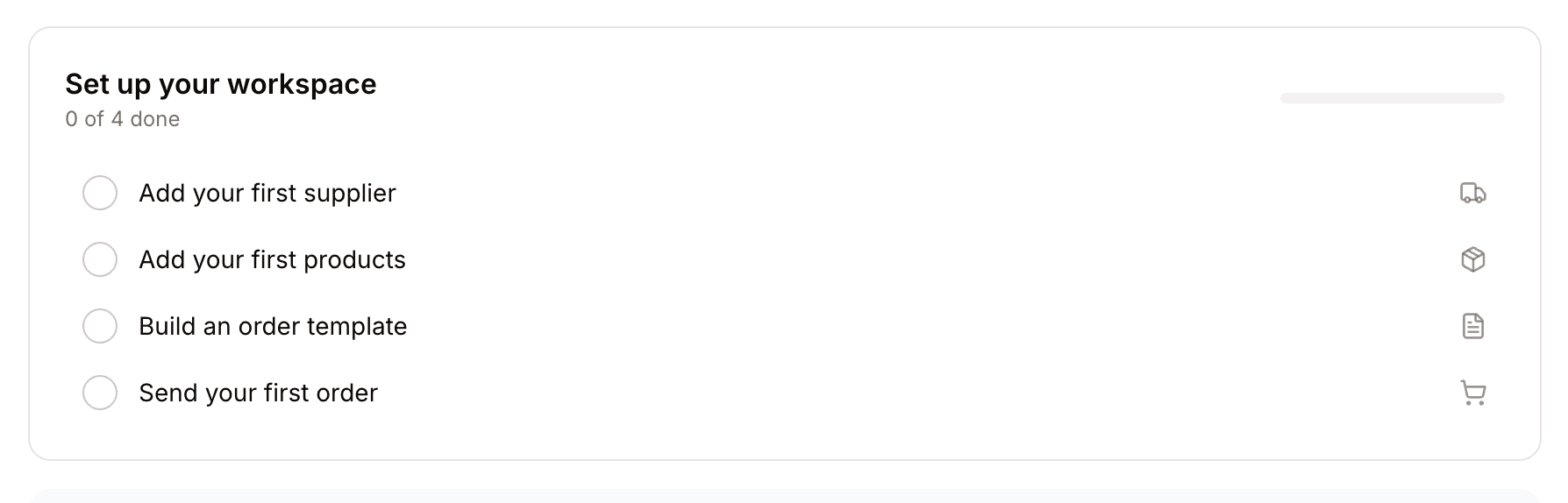
New companies see a Set up your workspace checklist on Home. The steps depend on the workflow you picked.
- Ordering usually starts with supplier, product, template, and first order setup.
- Cost calculation usually starts with supplier, product, menu item, and first cost review setup.
Click a checklist step and Spensa opens the assistant with the first message already prepared. You can finish the task with the assistant or do it manually from the feature page. Spensa marks the step complete when the required data exists.
Understand company and location level
Some things belong to the whole company, and some belong to one location. This matters when you add data or invite people.
Shared across the company:
- Products and suppliers
- Invoices
- Recipes and menu costs
- Company settings and billing
Belonging to one location:
- Orders and order templates
- Order schedules and deliveries
- Inventory storages, counts, and waste
- Staff schedules
- Many tasks and staff communications
- POS reports
Company members work at the company level and can see locations based on their role. Staff members belong to specific locations and only see the work assigned to them.
Add locations and people
If you run more than one restaurant, kitchen, bar, or store room, add each one as a location. Locations keep ordering, inventory, scheduling, and many operational tasks separate.
When you are ready to bring people in:
- Invite owners, office staff, accountants, and managers as company members with email accounts.
- Create username accounts for cooks, waiters, warehouse staff, and other location staff.
- Give people only the access they need for their work.
See Team and permissions for the full setup.
Find a page in the web app
On the web, you can jump to any page in the company sidebar without opening its sections.
- Click the magnifying glass at the top of the left sidebar, or press / anywhere outside a text field.
- Type what you are looking for, such as "suppliers", "dish costs", or "vacation".
- Matching pages appear while you type, with the best match first.
- Press Enter to open the best match, or use the arrow keys or click to pick another page.
Press Esc to clear the search, and press it again to close it. The search only shows pages you have access to.
Use the phone app
The phone app is for daily work: ordering, document scanning, tasks, inventory counts, recipes, schedules, news, team chats, and offline ordering. Staff members normally spend more time there than in the web app.
Start with Mobile app if your first rollout is for people working on the floor or in the kitchen.
Next guides
After the first setup is done, these guides usually come next.
- Account and profile - manage your sign-in, language, email addresses, and password after setup.
- Team and permissions - invite managers, create staff accounts, and decide what each person can do.
- Suppliers and Products - build the foundation for orders, invoices, inventory, and menu costs.
- Orders and Order templates - turn your supplier and product setup into repeatable ordering.
- Menu, Inventory, and Analytics and Home - use the same product data to understand cost, stock, and performance.
- Mobile app - roll daily work out to staff once the core setup is ready.
Good to know
- One account can belong to more than one company.
- Your app language is personal. Changing it affects only you.
- Staff username accounts use a manager-assisted password reset. An employee contact email is separate from sign-in.
- Products are worth setting up carefully because their unit structure is reused by invoices, orders, inventory, and menu costs.
- Tell the Spensa team what is confusing from Help > Give Feedback in the web sidebar.